Using iOS Visit Events in Titanium

It seems every app has its own way to handle Geo Location.  In many of my cases, your destination is more important then your journey. In iOS 8 Apple provides the CLVisit API specifically designed to provide this type of functionality.  Events are generated when you arrive to a location, and another is generated when you leave.  This provides a very battery friendly approach to solving place based Geo Location problems.

So how do you use this in Titanium?  Like almost any other Titanium requirement you run into there is a module already available.  You can download the Ti.GeoVisits module to use this functionality today.  I used the example app.js for a week and found that the Visit event fired reliably after I was in a single location for more then 10 minutes and about 5 minutes after leaving a location.  This wait time does cause for quick stops such as picking up take away to be missed.  Although this approach has trade offs, it virtually has no impact on battery life.

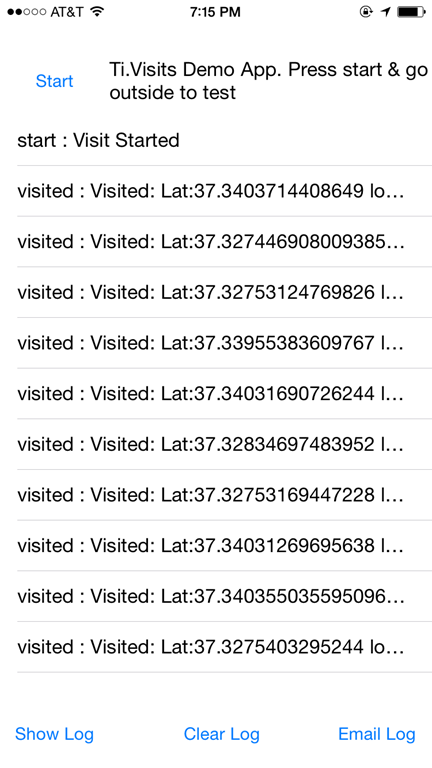
Below is a record of my tests over the last 9 days.  I’d encourage you to try the same test yourself.  As simulator testing isn’t really a meaningful option for Geo Location apps, I would suggest installing the example app.js and heading out to do a few errands.

Results for the last 9 days:
IMG_0214

What does the Ti.GeoVisits API look like?

The full Ti.GeoVisits API is very small consisting of only three methods and four events.  The below snippet summaries all of these.  For full documentation please visit here for details.

var visits = require('ti.geovisits');
//Fired when Ti.GeoVisits starts
visits.addEventListener('started',function(e){});
//Fired when Ti.GeoVisits stops
visits.addEventListener('stopped',function(e){});
//Fired when Ti.GeoVisits errors
visits.addEventListener('errored',function(e){});
//Fired when Ti.GeoVisits registers a place visited or left
visits.addEventListener('visited',function(e){});

//Boolean indicating if module supported
visits.isSupported()

//Method used to start monitoring for visits
visits.startMonitoring();

//Method used to stop monitoring visits
visits.stopMonitoring();

Learn more about Ti.GeoVisits on Github at https://github.com/benbahrenburg/Ti.GeoVisits.

You can also download the module GitTio at http://gitt.io/component/ti.geovisits
Titanium Charting with JBChartView

How to use Charts on mobile is one of those areas where everyone has an opinion.  Usually these approaches boil down to the use of a WebView or taking a dependency on a 3rd party native framework.

Usually I recommend using a WebView as the web charting tools tend to provide a greater level of functionality. But recently I discovered JBChartView by Jawbone which changed my mind.  JBChartView  provides charting functionality I typically use bundled in an easy to use native iOS (sorry not android version) project.

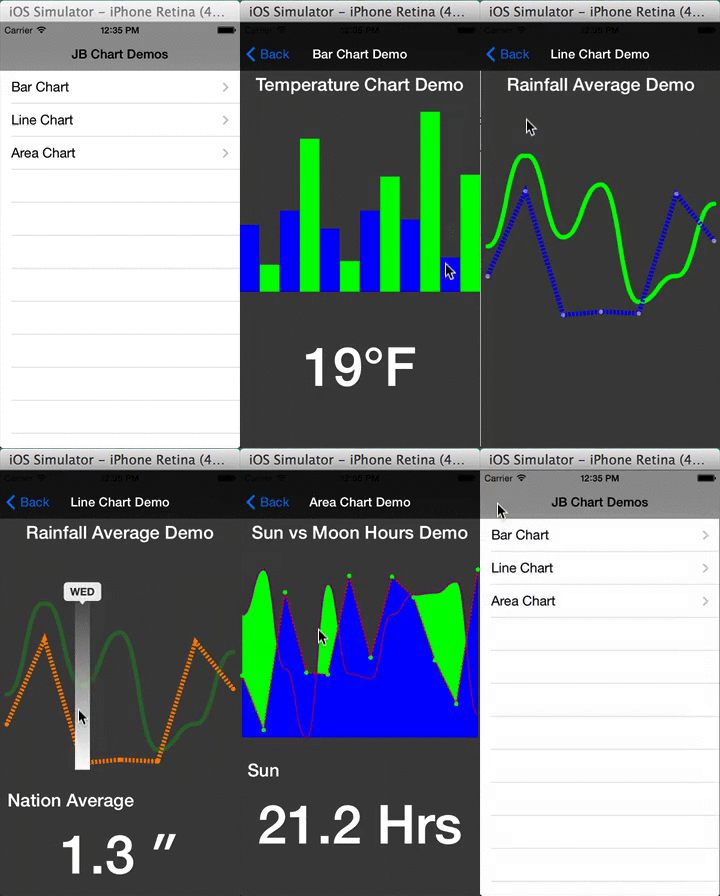
To make JBChartView consumable by Titanium I’ve wrapped the project into a module, Ti.JBChart , and created Titanium specific documentation and examples.  The below animated gif shows the Ti.JBChart examples in action.

In Action

An example

The Ti.JBChart  github project has examples for Bar, Line, and Area charts.   The following snippet shows an example on how to use the LineChartView in your Titanium project.

    function createData(){
        var result =[];
        function createRandom(min,max){
            return Math.floor(Math.random()*(max-min+1)+min);
        }   
        for (var iLoop=0;iLoop<12;iLoop++){
            result.push(createRandom(1,12));
        }
        return result;
    }

    var data = [];
    //Add first line chart
    data.push(createData());
    //Add second line chart
    data.push(createData());

    var myStyles = [];
    //Create the first line chart with a solid  line
    myStyles.push(chart.CHART_LINE_SOLID);
    //Create the second line chart as a with a dashed line
    myStyles.push(chart.CHART_LINE_DASHED);

    var lineChart = chart.createLineChartView({
        width:Ti.UI.FILL, height:250, 
        data : data,
        toolTipData : ['Mon', 'Tue', 'Wed', 'Thu', 'Fri', 'Sat', 'Sun'],
        selectedLineColors :['yellow','orange'],
        lineColors:['green','blue'],
        styles : myStyles,
        selectionBarColor:'purple',
        chartBackgroundColor:'#404041'
    });

Looking for more?

Fixing iOS module build.py permissions

Starting with Titanium 3.3.0.GA Appcelerator has updated their module templates to have a new default folder structure.  Along with these directory changes you will notice that you get a permission error when running the ./build.py script, usually something like the error shown below.

build-1

To fix this you simply need to run the chmod 755 build.py command in terminal as shown below.

build-2

This updates build.py to have the correct permissions so that you can continue your building by running build.py as you’ve always done.

build-3

Android Text to Speech and Speech to Text

The latest version of Ti.Utterance adds Android support for both Text to Speech and Speech to Text.  The Ti.Utterance native module surfaces the native platform APIs for Text to Speech, and on Android now Speech to Text.

Text to Speech

The Speech proxy provides your Titanium apps Text to Speech capabilities on both iOS and Android.  Ti.Utterance uses AVSpeechUtterance on iOS and android.speech.tts.TextToSpeech on Android.  This enables you to provide the Ti.Utterance module with a string, such as “hello world” for the module to speak.

To learn more about Text to Speech please read the documentation:

Sample

Full example available here.


var utterance = require('bencoding.utterance'),
	textToSpeech = utterance.createSpeech();

textToSpeech.startSpeaking({
	text:"Hello World"
});	

Speech to Text

The SpeechToText proxy is available on Android and provides Speech to Text capabilities using your device’s native platform speech recognizer.  When the startSpeechToText method is called, a microphone dialog will appear and listen for input from the user.  When the user stops speaking, Android’s speech recognizer will convert what was said into one or more text phrases.  If Android is not fully able to match was is said, the speech recognizer will provide a list of options in the order it feels is the best match.

To learn more about Speech to Text  please read the documentation:

Sample

Full example available here.


var utterance = require('bencoding.utterance'),
	speechToText = utterance.createSpeechToText();

speechToText.startSpeechToText({
	promptText:"Say something interesting",
	maxResults: 10
});

speechToText.addEventListener('completed',function(e){

	if(e.success && (e.wordCount > 0)){
		alert("Speech Recognized "
				+ e.wordCount
				+ " matches found: "
				+ JSON.stringify(e.words));
	}else{
		alert("Unable to recognize your speech");
	}

});

The Demo

Using an Android Blur View

One of the most popular effects in mobile today is the “blur”.  Although the blur effect is most commonly associated with iOS, several notable apps such as Etsy’s Android app use this technique.

The Ti.Blur module now provides Android support so that you can use this popular effect in both your Android and iOS Titanium apps.

The initial release of Ti.Blur for Android provides two APIs make applying a Box Blur easy.  The first APIs is an extended Ti.UI.View object called, BasicBlurView.  This view works similar to a Ti.UI.ImageView and applies the blur effect to the image or screenshot provide.  The second API is a called applyBlurTo and allows you to directly apply the Box Blur effect to an image.

The following shows them module’s example app in action.

android-blur


BasicBlurView on Android

The basicBlurView is a new view object within the Ti.Blur module.  This view object applies a Box Blur to any image provided to it’s image property. The blurRadius property is used to determine the level of blur that is applied.

This view would typically be used to blur an image, such as background image that you already have available in your app, or by taking a capture of the device’s current screen and providing it to the basicBlurView.

The basicBlurView is also cross-platform providing support for both Android and iOS.


var mod = require('bencoding.blur');

var win = Ti.UI.createWindow({
    backgroundColor:'white', title:"Image Blur Demo"
});
var vwTest = mod.createBasicBlurView({
    width:Ti.UI.FILL, height:Ti.UI.FILL, blurRadius:10,
    image: 'your-image-here.png'
});

win.add(vwTest);

win.open();

Blurring an image without a View object

The Ti.Blur module allows you to blur an image or blob directly without the use of a View object.  This is helpful if you want to cache the image for later, or use one of Titanium’s other built in UI objects.

The following code snippet is from the example app demonstrating how to apply a blur to an existing image packaged in your app.


var mod = require('bencoding.blur');

var win = Ti.UI.createWindow({
    backgroundColor:'white', title:"Image Blur Demo"
});

var imgblurredImage = mod.applyBlurTo({
    image:'42553_m.jpg',
    blurRadius:10
});

var vwTest = Ti.UI.createImageView({
    width:Ti.UI.FILL, height:Ti.UI.FILL,
    image:imgblurredImage
});

win.add(vwTest);

win.open();

Getting Started

Get started using Ti.Blur on either iOS or Android using the below links:

Source:

Modules:

Documentation:

Examples:

Titanium Live Blur, well kind of…

Since the release of iOS7, the Live Blur effect has been extremely popular.  Since Apple doesn’t yet provide this effect natively the community has come up with a few different approaches to achieve this effect.

Toolbar Layer

One common approach to achieving a live blur is to use a layer from the UIToolbar.  This allows you to use the same live blur effect that a IUToolbar has, but with the same functionality of a UIView.  This approach is reliable with good performance.  The downside, is you have no control over the Blur and in iOS 7.1 the blur was made softer making it difficult to see when used in come color schemes. Adrian  Opaladini has created an excellent Titanium module called Live BlurView which implements this approach. If you are looking at implementing a light live blur I highly recommend checking out this module.

Timer Driven

The next approach to implementing a live blur effect is to use a timer and a blur algorithm or library such as GPUImage.  Typically this is implemented using a timer which at a specific duration takes a snapshot of the source view and applies a blur effect.  As you can imagine the downside to this approach is you need to implement the refresh code yourself.   This usually requires managing the processes of a timer, view snapshot, and image processing.  Not a ton of code, but you don’t get anything out of the box. The upside, is complete control over the process.  This allows you to use the blur effect that looks best in your app, at a frequency that makes sense. There is an example of how to do this using the Ti.BlurView module here.

Another Option…

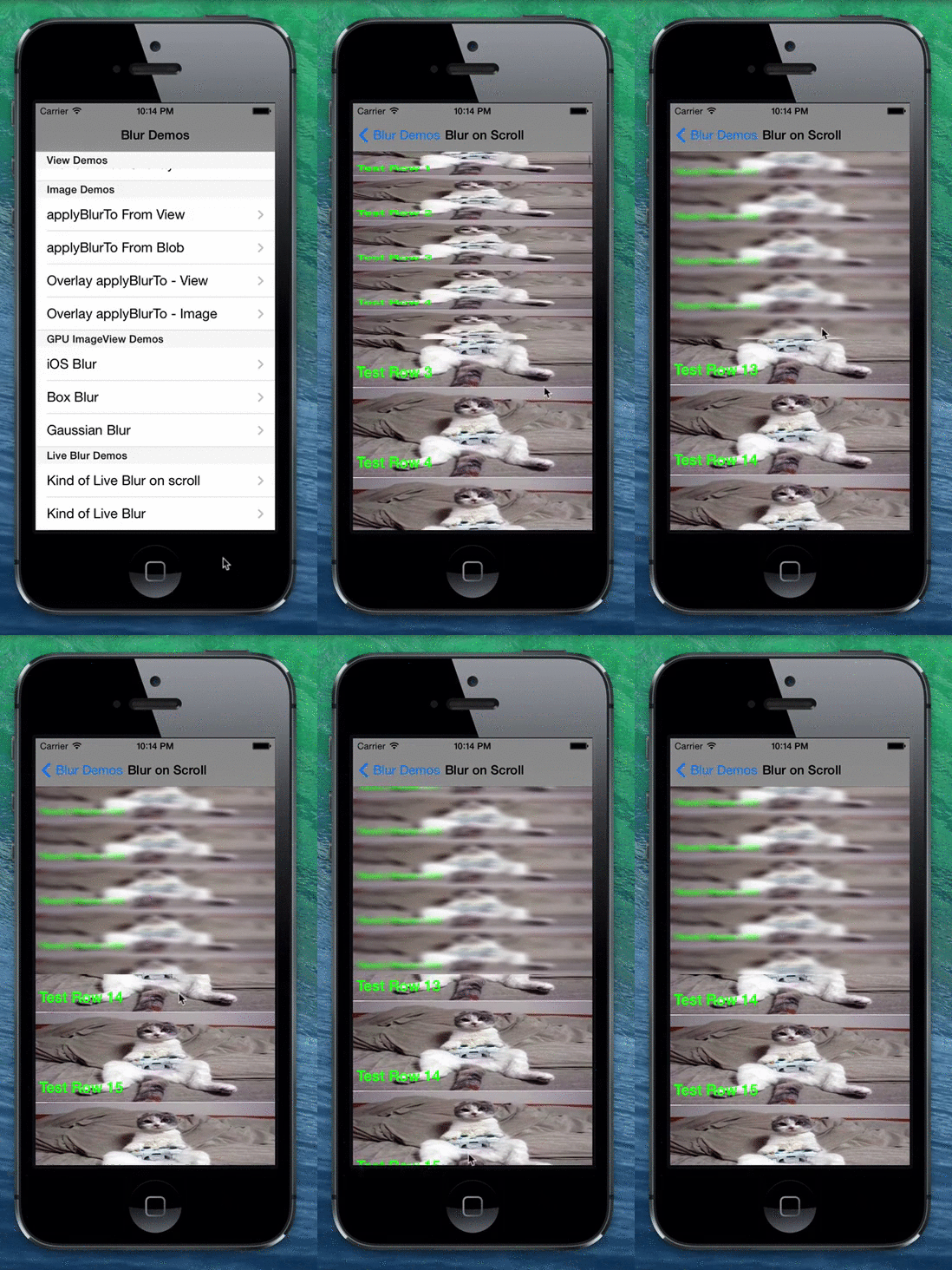
I really wasn’t happy with either the Toolbar or Timer approaches.  I wanted more control then I had with the Toolbar approach, but the idea of firing a timer when it wasn’t needed wasn’t appealing, especially considering the performance impact.  This got me thinking, that for many Titanium apps, the UI fires all types of events when the application state has changed.  Why not hook into these events. Out of this came the Scroll Blur example for the Ti.BlurView module.

See it in action

ScrollBlur

The Code

var mod = require('bencoding.blur');
	
exports.createWindow = function(){	

	var win = Ti.UI.createWindow({
		backgroundColor:'blue',
		barColor:"#999", title:"Blur on Scroll"
	});

	function createRows() {
	
	    function buildRow(el) {
	        var row = Ti.UI.createTableViewRow({
	            width:150, height:120
	        });
	
	        var headerImage = Ti.UI.createImageView({
	            image: el.image, 
	            width:Ti.UI.FILL, height:Ti.UI.FILL
	        });
	
	        var titleLabel = Ti.UI.createLabel({
	            text: el.title,
	            width: Ti.UI.FILL, height: '30dp', 
	            color:'green',
	            horizontalWrap: false, bottom: '5dp', 
	            left: '5dp', right: '5dp',
	            font: {
	                fontSize: '20dp', fontWeight:'bold'
	            }
	        });
	
	        row.add(headerImage);
	        row.add(titleLabel);
	        return row;
	    };
	
	    var rows=[];
	    for (var iLoop=0;iLoop<100;iLoop++){
	        rows.push(buildRow({ title: 'Test Row '+iLoop, 
	        					image: 'cat.jpg'}));
	    }
	    return rows;
	};

	var list = Ti.UI.createTableView({
	    width:Ti.UI.FILL,  height:Ti.UI.FILL, data:createRows()
	});
	win.add(list);

	var imgView = mod.createGPUBlurImageView({
		height:250, width:Ti.UI.FILL, zIndex:500,top:0,
		blur:{
			type:mod.IOS_BLUR, radiusInPixels:1
		}		
	});
	win.add(imgView);	

	var w = Ti.Platform.displayCaps.platformWidth;
	var blur = {
		timerId: null,
		apply : function(){
			Ti.API.debug("Taking screenshot");
			var screenshot = list.toImage();
			Ti.API.debug("applyBlur : Cropping screenshot");
			screenshot.imageAsCropped({x:0,y:0, height:250,
										width:w});
			Ti.API.debug("set screenshot as image to ImageView");
			imgView.image = screenshot;
			Ti.API.debug("set blur so we will update");
			imgView.blur={
				type:mod.BOX_BLUR, radiusInPixels:5
			};	
			Ti.API.debug(" Done with Blur");				
		}		
	};
		
	list.addEventListener('scroll',function(f){
		Ti.API.debug("action fired : scroll");
		
		if(blur.timerId!=null){
			Ti.API.debug("Timer already set, returning");
			return;
		}
		
		blur.timerId = setTimeout(function(){
			blur.apply();
			blur.timerId = null;	
		},50);	
			
	});

	list.addEventListener('scrollend',function(f){
		Ti.API.debug("action fired : scrollend");
		
		if(blur.timerId!=null){
			Ti.API.debug("Clearing Interval");
			clearInterval(blur.timerId);
			blur.timerId = null;
		}
		blur.apply();	
	});
 	 		
	win.addEventListener('open',function(f){
		blur.apply();
	});

	win.addEventListener('close',function(f){
		if(blur.timerId!=null){
			clearInterval(blur.timerId);
		}	
	});
		
	return win;
};

Blur Effects with GPUBlurImageView

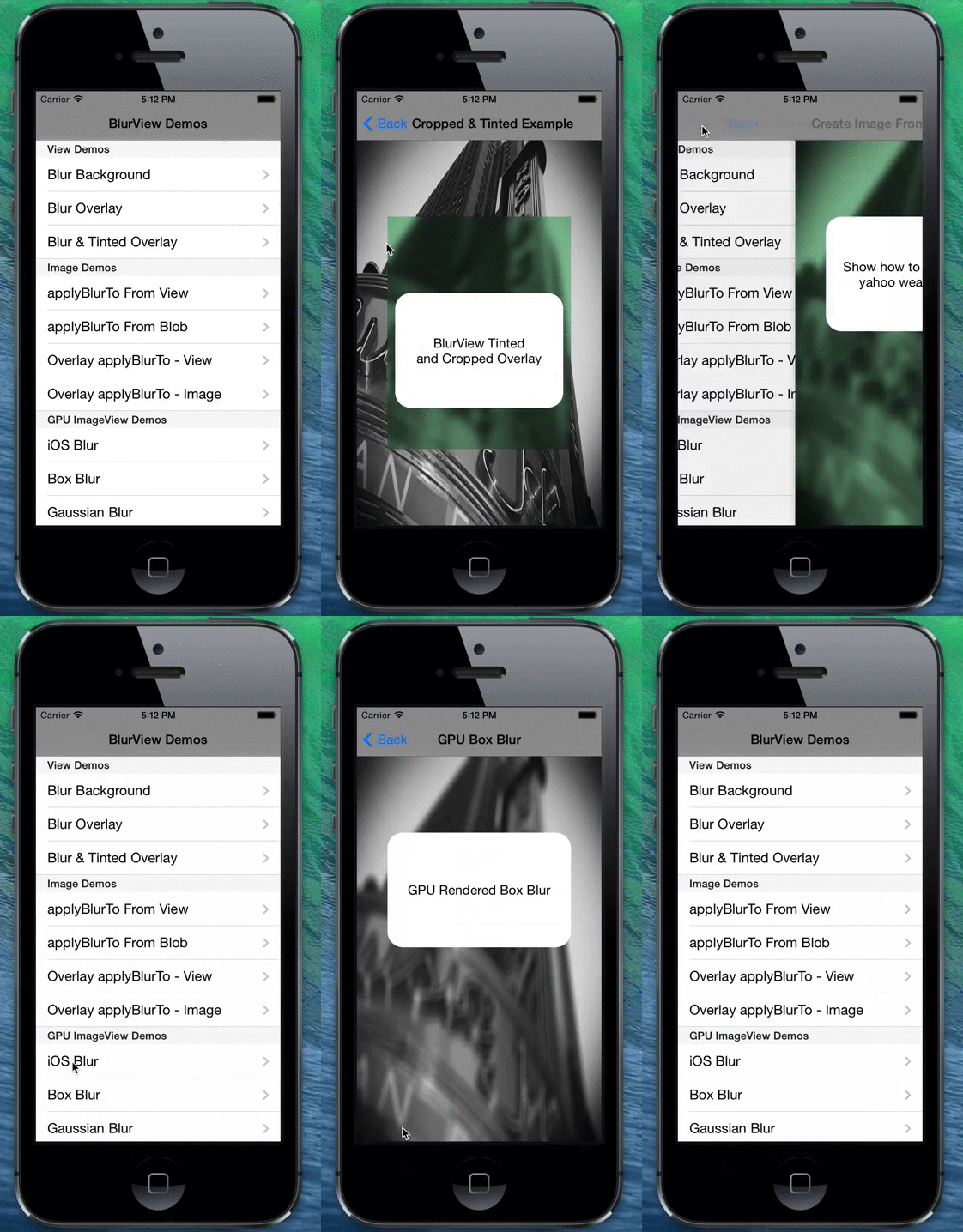
Looking for a high performance way to apply Blur effects?  The latest release of the Ti.Blur module provides the new high performance GPUBlurImageView component.  GPUBlurImageView is an extended version of the Ti.UI.ImageView with one extra  property, blur.  Through this single property you can apply iOS, Box, or Gaussian blur effects.

Initial tests show a 50% performance improvement over the prior Ti.BlurView blur functionality.  If you have a retina display on your mac you will find the GPUBlurImageView renders faster on device then in the simulator due to the number of pixels being rendered.

iOS Blur Code Example:


var mod = require('bencoding.blur');

var imageView = mod.createGPUBlurImageView({
    height:Ti.UI.FILL, width:Ti.UI.FILL,
    image:"42553_m.jpg",
    blur:{
        type:mod.IOS_BLUR, radiusInPixels:1
    }
});

See the BlurView in action:

ios_demo

iOS 7 Screen Brightness

Looking to implement a day and night mode to your app?  Ti.Brightness provides a series of APIs that allows you to read the iOS 7 screen brightness and be notified if it changes.

Getting the screen brightness

Reading the iOS 7 screen brightness level is easy.  Just call the getScreenBrightness method as shown below.  This method provides Titanium access to the underlying iOS [UIScreen mainScreen].brightness platform API.

var brightness = require('ti.brightness');
var level= brightness.getScreenBrightness();
Ti.API.info("Brightness Level:" + level);

* If you are running this in the simulator, 0.5 will always be returned.

Brightness Changed Event

You can use the changed event as shown in the following snippet to trigger an event after the user has adjusted their screen brightness. This event provides Titanium access to the name UIScreenBrightnessDidChangeNotification notification.

function onBrightChange(e){
    Ti.API.info(JSON.stringify(e));
    alert("Your Screen brightness is level: " + e.brightness);
};

brightness.addEventListener('changed',onBrightChange);

* This event will not trigger in the simulator

In Action

The following movie shows the module in action and how Ti.Brightness can be used to add a dark and light theme to your app.

Review : Build a Network Application with Node

I had the opportunity to review the PACKT video series “Build a Network Application with Node” by Joe Stanco.  This video series walks you through how, at a high-level, to create different types of web apps using Node.JS.

This video series targets the JavaScript developer with a basic understanding of Node.JS.  Joe Stanco does an excellent job in guiding the viewer through the creation of a series of web apps designed to highlight common develop use cases.  The examples start with a barebones “hello world” type app and gradually move the viewer to a more complex Socket.IO and Bootstrap app.

Joe Stanco’s presentation skills are impressive, from introduction to conclusion his delivery was clear, easy to understand, and in sync with his examples.  With a length of over 2 hours, the pace and clarify of presentation made “Build a Network Application with Node” easy to watch in a single sitting.

I do wish this was divided into a “Fundamentals” and “Advanced” course.  This would allow for Joe to spend more time on the advanced topics.

You can check out a sample section of “Build a Network Application with Node” on YouTube here.

Digital Assistant Built with Titanium Mobile

Ever want to build your own version of Siri that understands keywords specific to your app or business domain?  This can be done easily using Titanium and a few modules.  The below video is a proof of concept I put together to demonstrate some of what can be done.  Over the next couple of posts I’ll walk through the components used to create this example.

Ti Digital Assistant Video

Modules used: