Text to Speech with Titanium

iOS 7 introduced the speech synthesizer API AVSpeechSynthesizer.  With this API you can have iOS speak a phrase in the language of the text provided.  Used correctly this can add a compelling level of user interaction and direction to your app.

The Utterance iOS Titanium module provides a simple to use API for interacting with AVSpeechSynthesizer in the simulator or on device.

In just a few lines of code you can speak a phrase in any supported language.  Here is an example in Japanese.

First we require the module into our Titanium program


var utterance = require('bencoding.utterance');

Then we create a new Speech object

var speech = utterance.createSpeech();

Finally we call the startSpeaking method and provide the text we wish to have read.

    speech.startSpeaking({
        text:"こんにちは"
    }); 

For a full list of the methods available please visit the project n github here.

Here the module in action

The following is a video showing the module in action.

How to get the module:

TableView Header Zoom

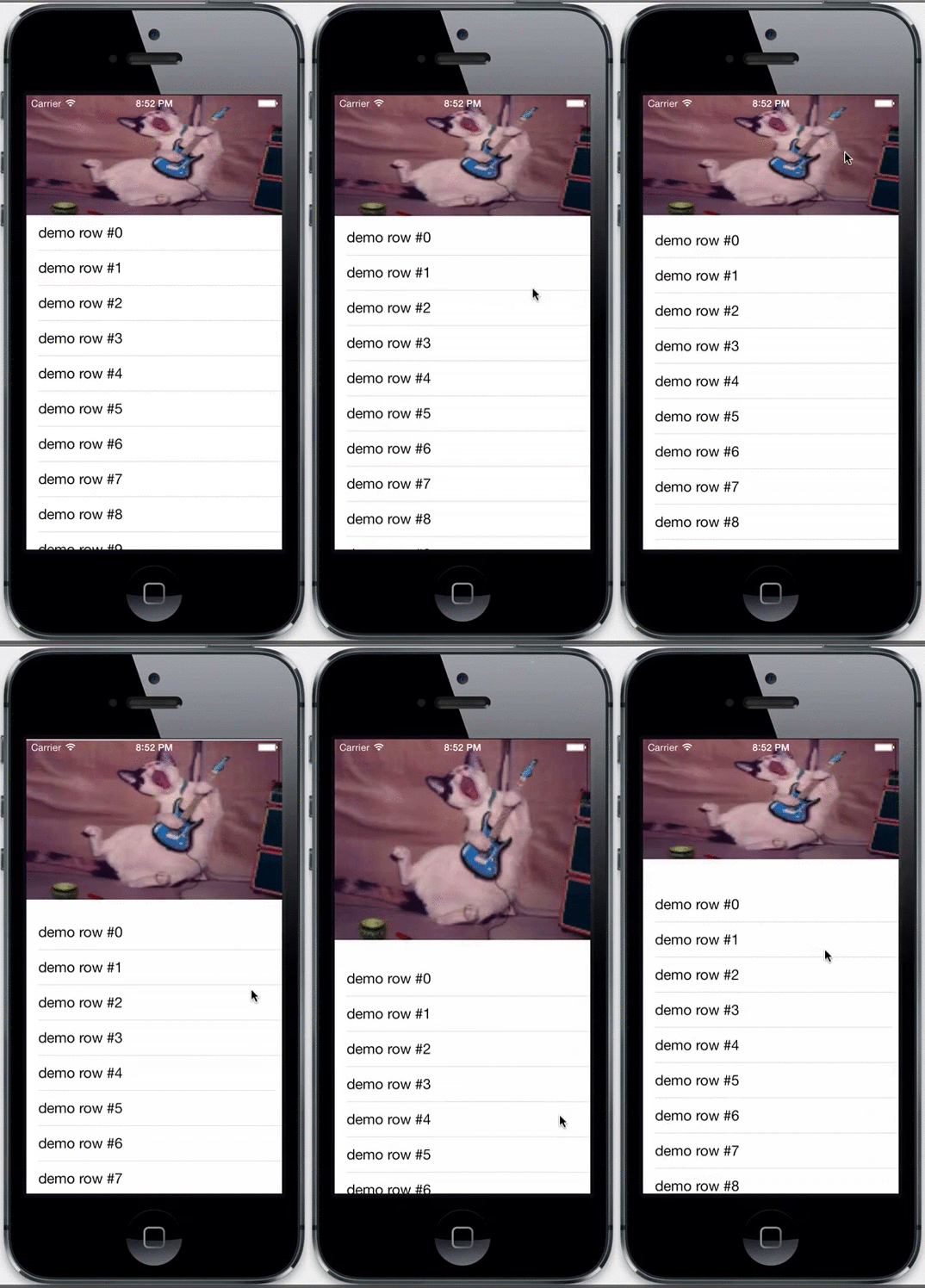
Want to create a TableView Header Zoom effect like Foursquare, Tapbots, and others?  You can do this in Titanium with only a couple lines of code.

The following code snippet shows how to expand a Ti.UI.ImageView in a Ti.UI.TableView HeaderView to achieve a zoom like effect when the user over scrolls the TableView as demonstrated in the preview below.

TableViewHeader

'use strict';

var win = Ti.UI.createWindow({
    backgroundColor: 'white',
});

//Generate some sample rows
var rows = [];
for (var iLoop=0;iLoop<100;iLoop++){
    rows.push({ title: 'demo row #'+iLoop});
}

//Create our TableView, nothing special
var tableView = Ti.UI.createTableView({
    width:Ti.UI.FILL, height:Ti.UI.FILL,
    data:rows
});

//Create a ImageView for the TableView HeaderView
var imgView = Ti.UI.createImageView({
	width:Ti.UI.FILL, height:150,
	image:"cat.png"
});
//Set our ImageView as the headerView
tableView.headerView = imgView;

win.add(tableView);

//Need to capture a few session variables 
//The most important one is to grab the original height
// of the TableView HeaderView
var _scollTimer = null, 
	_origionHeight = tableView.headerView.height;

//Most of what we need happens in the scroll event
tableView.addEventListener('scroll',function(e){	

	//Clear our timer each time
	if(_scollTimer!==null){
		clearInterval(_scollTimer);
	}

	//If the user has scrolled past the header, 
        //reset the origional height
	if(e.contentOffset.y>_origionHeight){
		if(tableView.headerView.height !== _origionHeight){
			tableView.headerView.height = _origionHeight;
		}		
	}else{
		//Calculate our zoom or expand height
		var zoomOffSet = ((e.contentOffset.y<0)?-1:1);
		var zoomHeight = (tableView.headerView.height + 
					((zoomOffSet*-1)*
                          ((zoomOffSet*e.contentOffset.y)/3)));
		zoomHeight= ((zoomHeight > _origionHeight) 
                            ? zoomHeight : _origionHeight);
		if(tableView.headerView.height !==zoomHeight){
			tableView.headerView.height =zoomHeight;
		}			
	} 

	//Timer is needed since scrollend doesn't always fire
	//so just in case we set a timer to set the origional height
	if(e.contentOffset.y===0){
        _scollTimer = setTimeout(function()
        {
			tableView.headerView.height = _origionHeight;
        },250);		 
	}		
});

//If the user end scrolls something other then the 
//HeaderView check if we need to reset
tableView.addEventListener('scrollend',function(e){	
	if(_scollTimer!=null){
		clearInterval(_scollTimer);
	}	
	if(tableView.headerView.height !== _origionHeight){
		tableView.headerView.height = _origionHeight;
	}	
});

win.open();

Get this snippet on gist here.

Creating Blurred Backgrounds & Overlays in Titanium

With iOS 7 and the new flat design aesthetic many apps are using a blurred background or overlay to help set depth or attention.  The Ti.BlurView iOS native module now makes this easy to implement in Titanium.  Since we are using CoreImage you can use this in iOS 6 or greater.

Below shows Ti.BlurView example app.js in action, for a full walk through see the video here.

BlurView Demo
The Ti.BlurView module’s source is available on Github here.

You can get started today using Ti.BlurView with the following:

Please note you need iOS 6 or greater to use this module so make sure to set the min-ios-ver in your Titanium tiapp.xml to at least the value displayed below.

<min-ios-ver>6.0</min-ios-ver>

Below is a snippet showing how to create a blurred background image similar to the Yahoo Weather app.

var mod = require('bencoding.blur');

var win = Ti.UI.createWindow({
	backgroundColor:'blue'
});

var bgView = Ti.UI.createView({
	height:Ti.UI.FILL, width:Ti.UI.FILL,
	backgroundImage:"42553_m.jpg"
});
win.add(bgView);

var blurView = mod.createView({
	height:Ti.UI.FILL,
	width:Ti.UI.FILL,
	blurLevel:5, blurCroppedToRect:false,
        backgroundView:bgView
});
bgView.add(blurView);

win.addEventListener('open',function(d){

	var container = Ti.UI.createView({
		backgroundColor:"#fff", borderRadius:20,
		top:100, height:150, left:40, right:40
	});
	blurView.add(container);
	var label = Ti.UI.createLabel({
		text:"Show how to blur like the yahoo weather app.",
		color:"#000", width:Ti.UI.FILL,
		height:50, textAlign:"center"
	});
	container.add(label);

});

win.open();

You can also use the applyBlurTo method to create your own Blur View containers.  For information on how to do this please see the documentation here.

Review : Xcode 4 Cookbook

Xcode

PACKT recently provided the opportunity for me to review the Xcode 4 Cookbook by Steven Daniel.  As primarily a Titanium developer I spend most of my time in Sublime Text or Titanium Studio so I thought it would provide a good opportunity to spend more time in Xcode. 

First, the book title is alittle misleading.  I found this book to be more about iOS development then Xcode itself.  The author does cover Xcode in detail, but always in the context of building or profiling an app.  This approach made it both easier to read and to remember.

The book starts with covering the basics and then moves into creating user interfaces.  Having built most of my UIs through code it I found the content on Interface Builder and Storyboards helpful.  The recipes are easy to follow and very detailed, perfect for beginners. 

My favorite section of the book is around instruments.  Again the author walks us through these recipes in a very detailed easy to follow way.  As a side note, you can use the same steps outlined in these recipes in your Titanium project. You just need to generate a full Xcode project using transport.py as detailed here.  Coming from a non Xcode background, the navigation and descriptions of the options available for profiling made Xcode’s sometimes challenging interface easy to understand.

The chapter on iCloud provided a great “getting started” guide with a clear easy to understand recipe showing on to implement Document based storage using NSUbiquitousKeyValueStore.  This was a good introduction to iCloud and very easy for someone new to iCloud to follow along.  I do wish the author would have gone further on this topic and provided more details on storing greater the 64k documents.

The recipe using CoreImage provides a nice introduction to the topic and discusses a few of the common available filters.  This recipe provided a nice transition from the earlier CoreGraphic recipe.  I do wish the author would have provides a multi filter example though.

Overall, I really enjoyed reading this book and found the recipes helpful.  The detail and direction provided by the author makes all of the recipes easy to follow and quick to perform.  If you are new to iOS development or Xcode this book provides the resources needed to tackle that learning curve quickly.

Ti.mely Native Timer Modules for Titanium

The Ti.mely project provides Titanium access to iOS and Android native timers.  The native nature of these timers can be advantageous for background or long interval poling.

Using Ti.mely

The usage is straightforward, you simply create a new timer object

var timer = timerMod.createTimer();

Attach a listener to listen for the onIntervalChange event as shown below

    function showUpdate(d){
        var msg = "interval changed - interval set to " + d.interval;
            msg += " interval count = " + d.intervalCount;
        Ti.API.info(msg);
    }

    timer.addEventListener('onIntervalChange',showUpdate);

Initialize the timer by calling the start method.  This method takes the interval in milliseconds and an optional debug flag which will print timer information to your console window.

    timer.start({
        interval:2000,
        debug:true
    });

To stop the timer, simply call the stop method as shown below.

timer.stop();

Native Consideration, ie Side Effects

Each time an interval elapses the onIntervalChange event will be fired.  The firing of this event will cause a trip over the Kroll JavaScript bridge.  For this reason using Ti.mely to implement high speed timers of 500 milliseconds or less could negatively impact app performance.

Get the module

The Ti.mely source code and compiled modules are available on Github(https://github.com/benbahrenburg/ti.mely) under the MIT license.

You can download the compiled modules using the following links

Example app.js

The below sample demonstrates how to use the Ti.mely module.  This app.js is include within the module’s example folder or available for iOS here and Android here.

var timer =  require('ti.mely').createTimer();

var win = Ti.UI.createWindow({
	backgroundColor:'#fff'
});

var how2Label = Ti.UI.createLabel({
	text:"Enter Duration in milliseconds",
	top:20, left:7, right:7, height:20,color:"#000"
});
win.add(how2Label);

var durationText = Ti.UI.createTextField({
	value:1000, top:50, left:7, right:7, height:40, color:"#000"
});
win.add(durationText);

var counterLabel = Ti.UI.createLabel({
	top:100, width:Ti.UI.FILL, height:40,left:7, right:7,color:"#000"
});
win.add(counterLabel);

function showUpdate(d){
	var msg = "interval changed - interval set to " + d.interval;
            msg += " interval count = " + d.intervalCount;
	Ti.API.info(msg);
	counterLabel.text = "Updated " + d.intervalCount  + " times.";
};

var startButton = Ti.UI.createButton({
	title:"Start", top:200, left:7, height:40, width:125
});
win.add(startButton);

startButton.addEventListener('click',function(e){
	counterLabel.text ="Starting Timer";
	timer.addEventListener('onIntervalChange',showUpdate);
	timer.start({
		interval:durationText.value,
		debug:true
	});
});

var stopButton = Ti.UI.createButton({
	title:"Stop", top:200,
	right:7, height:40, width:125
});
win.add(stopButton);

stopButton.addEventListener('click',function(e){
	timer.stop();
	timer.removeEventListener('onIntervalChange',showUpdate);
	counterLabel.text ="Press the Start button to test again";
});

win.open();

iOS7 Style Switches in Titanium

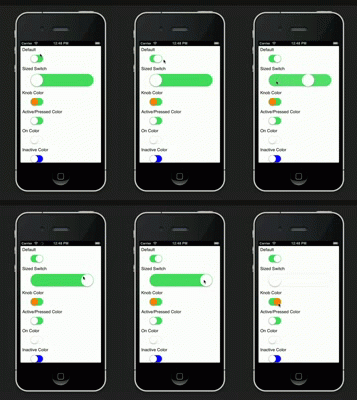
Included in the iOS7 redesign is a compelling update to the look of the UISwitch.  The SevenSwitch project by Ben Vogelzang provides the iOS7 design as a drop in replacement for the UISwitch in iOS5+.  I wanted to use this awesome project in my iOS Titanium apps so I created the Ti.SevenSwitch module.

See it in action:

Get the module:

You can download the source at on Github or the compiled module here.

The example:

The demo:

demo

The code:


var mod = require('ti.sevenswitch');

var win = Ti.UI.createWindow({
backgroundColor:'white', layout:'vertical'
});

win.add(Ti.UI.createLabel({
text:"Default", textAlign:"left", height:25, left:7, top:0
}));

var defaultSwitch = mod.createSwitch({
top:5, left:20, value:true, height:30, width:50
});
win.add(defaultSwitch);

win.add(Ti.UI.createLabel({
text:"Sized Switch", textAlign:"left", height:25, left:7, top:15
}));

var bigSwitch = mod.createSwitch({
top:5, height:50, width:250, left:20, value:true
});
win.add(bigSwitch);

win.add(Ti.UI.createLabel({
text:"Knob Color", textAlign:"left", height:25, left:7, top:15
}));
var colorKnobSwitch = mod.createSwitch({
top:5, left:20, height:30, width:50, value:true, knobColor:"orange"
});
win.add(colorKnobSwitch);

win.add(Ti.UI.createLabel({
text:"Active/Pressed Color", textAlign:"left", height:25, left:7, top:15
}));
var activeColorSwitch = mod.createSwitch({
top:5, left:20, height:30, value:true, activeColor:"orange", height:30, width:50
});
win.add(activeColorSwitch);

win.add(Ti.UI.createLabel({
text:"On Color", textAlign:"left", height:25, left:7, top:15
}));
var onColorSwitch = mod.createSwitch({
top:5, left:20, height:30, value:false, onColor:"yellow", height:30, width:50
});
win.add(onColorSwitch);

win.add(Ti.UI.createLabel({
text:"Inactive Color", textAlign:"left", height:25, left:7, top:15
}));
var inactiveColorSwitch = mod.createSwitch({
top:5, left:20, height:30, value:false, inactiveColor:"blue", height:30, width:50
});
win.add(inactiveColorSwitch);

win.open();

Securely: Titanium Security Module

The first release of Securely the Titanium security module is now available on Github.  The goal of this project is to provide the tools and components needed to build secure Titanium apps.  Securely provides a comprehensive set of methods designed to easily handle your most common security requirements.

Features include

  • Secure Properties
  • Key Generators
  • String Encryption
  • File Encryption
  • PDF Protection

Get the module

The source and compiled module are both available on Github under the Apache 2 license.

Learn more

Learn more about this module by visiting the following links on Github:

  •  Documentation : Complete method level documentation with examples
  •  Samples : Example app.js files demonstrating how to use each proxy type

Appcelerator Titanium Business Application Development Cookbook

My first book Appcelerator Titanium Business Application Development Cookbook ships today.  This book is focused on providing re-usable recipes for the Enterprise Titanium mobile developer.

Beginning with a discussion of design patterns, the practical recipes in this cookbook progress through different topics required for Enterprise mobile development.  Each recipe within this cookbook is a self-contained lesson.  Feel free to pick and choose which recipes are of interest and use them as a reference on your Titanium projects.  Appcelerator Titanium Business Application Development Cookbook demonstrates how to work with data on the device, creating charts and graphs, and interact with various web services.  Later recipes discussing web services, document handling, and application security helping to provide additional resources to accelerate your next Titanium mobile development project.

Available at:

5343OT_Cover_PreFinal_mid2

Ti.SQ Squared Calendar Module

The Square TimeSquare project provides a rich and unique full featured Calendar Picker.  The cross-platform nature of this project makes it a perfect candidate for Titanium.

I’m happy to announce, the Ti.SQ modules for iOS and Android which allows you to use this excellent component in your Titanium projects.

The following provides all the details needed to get starting using this module in your projects today.

See it in action

iOS


Android


Get the module

All of the modules code, assets, documentation, and examples are available on github.

Before you start – Please make sure you read the project readme file before starting.  The readme file outlines all API differences and project dependences.

Documentation – Project documentation can be found here.

Examples – The iOS and Android APIs are almost.  A majority of the examples should work cross-platform with only minor updates.  Please make sure you read the documentation regarding the differences between iOS and Android.  The examples can be found for iOS here and Android here.

What to contribute– Pull Requests and other contributions are welcome.  Examples, and documentation are also encouraged.

Show me the Example

The following snippet outlines a basic usage scenario for the Ti.SQ module.

var sq = require('ti.sq');
Ti.API.info("module is => " + sq);

var win = Ti.UI.createWindow({
	backgroundColor:'#fff'
});

var calendarView = sq.createView({
	height:Ti.UI.FILL,
	top:0, bottom:'40dp',
	pagingEnabled:true,
	value:{
		month:6,day:10,year:2013
	},	
	min:{
		month:2,day:15,year:2013
	},
	max:{
		month:10,day:15,year:2013
	}
});
win.add(calendarView);

calendarView.addEventListener('dateChanged',function(d){
truei.API.info(JSON.stringify(d));
	Ti.API.info(JSON.stringify(d.dateValue));
	Ti.API.info(JSON.stringify(d.value));
	Ti.API.info(JSON.stringify(calendarView.value));	
})	

var button = Ti.UI.createButton({
	title:'Click to get selected value',
	height:'40dp', width:Ti.UI.FILL, bottom:0
});	
win.add(button);

button.addEventListener('click',function(d){
	Ti.API.info(JSON.stringify(calendarView.value));
	alert(String.formatDate(calendarView.value,"long"));
})	

win.open();