Titanium Stepper Module

Want to use the iOS UIStepper in your Titanium App?

stepper115 Use the native iOS UIStepper in your Titanium application. This module provides Titanium accessibility to Apple’s native UIStepper introduced in iOS5.

See the below on how to get started using this in your Titanium apps today.

Want To Download The Module?

You can download the compile module here.  Please take a look at the “Before You Start” section to make sure you have all of the module dependencies.

Interested In The Source?

The source is available in the benCoding.Stepper repo on GitHub.

Before You  Start

  • You need Titanium 1.8.1 or greater
  • This module will only work with iOS 5 or great.

How Does It Work?

This module provides Titanium access to the native Apple UIStepper controller.  The module’s API has been fashioned after the Titanium slider to make it familiar to use.

What Does It Look Like?

See is a quick video showing the module in action.

Documentation & Examples

For the example app shown above and full html documentation please check out the documentation and example folders in the module zip.

How Do I Use It?

//First we bring in the module using the require syntax
var stepper = require('bencoding.stepper');

//We now create our stepper control
//The stepper is added to any view, window, etc just like any other Titanium control
var myStepper = stepper.createStepper({
    min:10, //Minimum stepper value
    max:200,//Maximum stepper value
    value:25, //Initial or starting value of the stepper
    continuous:true //increment on value ( or stepvalue ) for each touch event
});

//We listen for the change event.
myStepper.addEventListener('change',function(e){
Ti.API.info('e.value: ' + e.value + ' myStepper.value=' + myStepper.value);
});
Titanium SMS Module

Need a SMS Dialog in your Titanium app?

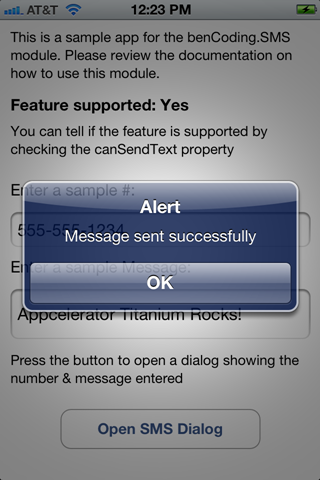
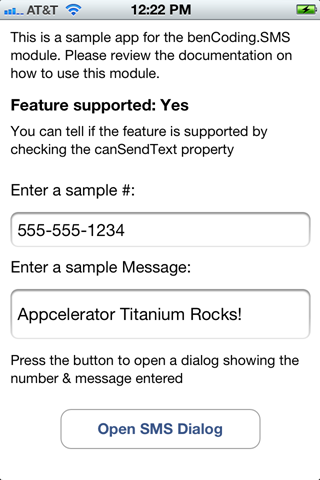
The benCoding.SMS module makes it easy to add SMS functionality into your iOS Titanium apps. We unleash the power of Apple’s native Apple SMS component to Titanium with an API fashioned after the Titanium EmailDialog to make it familiar to use. 

See the below on how to get started using this in your Titanium apps today.

Want To Download The Module?

You can download the compile module here.  Please take a look at the “Before You Start” section to make sure you have all of the module dependencies.

Interested In The Source?

The source is available in the benCoding.SMS repo on GitHub.

Before You  Start

  • You need Titanium 1.8.1 or greater
  • This module will only work with iOS 4 or great.

How Does It Work?

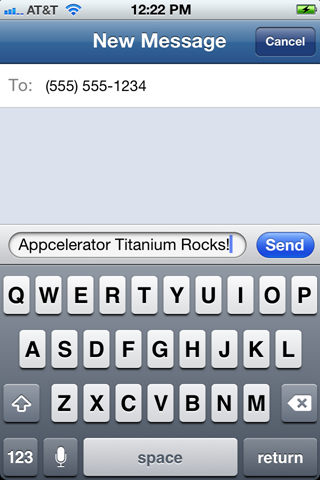
This module provides Titanium access to the native Apple SMS component MFMessageComposeViewController.  The module’s API has been fashioned after the Titanium EmailDialog to make it familiar to use.

What Does It Look Like?

 Example AppDialog Sample  Completed Event 

Documentation & Examples

For the example app shown above and full html documentation please check out the documentation and example folders in the module zip.

How Do I Use It?

//Create SMSDialog object
var sms = require('bencoding.sms').createSMSDialog({ barColor:'#336699' });

Ti.API.info("Is This Feature Supported? => " + sms.canSendText);
//This is an example of how to check if the device can send Text Messages
if(!sms.canSendText){
	var noSupport = Ti.UI.createAlertDialog({
			title:'Not Supported',
			message:"This device doesn't support sending text messages" 
	}).show();

	return;

}else{

	//Set the SMS message, you can also do this when you create the SMSDialog
	sms.setMessageBody("Appcelerator Titanium Rocks!");
	
	//Set the SMS ToRecipients you can also do this when you create the SMSDialog
	//This is an array so you can pass in several numbers for the message
	sms.setToRecipients(["555-555-1234","444-444-1234"]);
	
	//This call opens the SMS Message Dialog
	sms.open({
		animated:true //Animated on open (OPTIONAL)
	});
}

Titanium Dictionary Module

What to use the native iOS5 Dictionary in your Titanium Mobile app?

The new benCoding.Dictionary module that makes it easy to this functionality into any Titanium app that targets iOS5 or greater.

Want to download the module?

You can download the compile module here.  Please take a look at the “Before You Start” section to make sure you have all of the module dependencies.

Interested in the source?

The source is available in the benCoding-Dictionary repo on GitHub.

Before You Start

This module has a few dependencies, make sure you meet the below criteria.

  • You need to be targeting Titanium 1.8.1 or greater.
  • This module requires iOS5

How Does It Work?

The module provides a Titanium wrapper around Apple’s native UIReferenceLibraryViewController.

What Does It Look Like?

Since this is largely a UI component please find below a short video showing the example app running in the simulator.

Documentation & Examples

For the example app shown above and full html documentation please check out the documentation and example folders in the module zip.

Need A Quick Example?

Here is a quick example showing how to use the module.  To learn more please see the documentation link here and the example link here.


var referenceLibrary = require('bencoding.dictionary').createReferenceLibrary();
Ti.API.info("This feature is only supported in iOS5 and above");
Ti.API.info("Check if we have the min OS version needed");
Ti.API.info("Is Supported? => " + referenceLibrary.isSupported());
Ti.API.info("Check if Apple knows the definition for fanboy");
var hasDefinition = referenceLibrary.wordHasDefinition('fanboy');
Ti.API.info("Term has definition =>" + hasDefinition);

if(!hasDefinition){
alert('You can still call showDialog it will just display a message that no definition was found');
}else{
//If you want you can define some callbacks
function termDialogBoxHasBeenClosed(){
Ti.API.info("I'm a callback when the Definition Dialog Box has been closed.");
};
function termDialogHadError(e){
Ti.API.info("I'm a callback when an error happens this error is due to: " + e.error);
};

Ti.API.info("You can add an event to be called if there is an error");
referenceLibrary.addEventListener('errored', termDialogHadError);

Ti.API.info("You can add an event to be called when the definition dialog is closed");
referenceLibrary.addEventListener('closed', termDialogBoxHasBeenClosed);

//Open the definition dialog window
referenceLibrary.showDialog({
//This is the term to search for (REQUIRED)
term:'fanboy',
//Indicate if the dialog should be animated on open (OPTIONAL)
animated:true,
//This is the transition style (OPTIONAL)
modalTransitionStyle:Ti.UI.iPhone.MODAL_TRANSITION_STYLE_FLIP_HORIZONTAL
});
}

Adding BackgroundModes to your Titanium Project

Since the introduction of iOS 4 Apple has supported background services for the below listed specific tasks.

  • Audio – The application plays audible content to the user while in the background.
  • Location – The application keeps users informed of their location, even while running in the background.
  • VOIP – The application provides the ability for the user to make phone calls using an Internet connection.

Titanium has always supported these through the use of a custom plist.  In recent versions of Titanium allow you to manage this directly within your project’s tiapp.xml file.

To use this, simply add the backgroundModes node to your iphone configuration section.  After adding this configuration block, clean your Titanium project and run your project again.  Titanium will automatically create a new info.plist with your new backgroundModes.


backgroundModes

Something to consider

Please remember that Apple has very specific guidelines around these configuration options and will perform specific tests during the approval process if your info.plist has any backgroundModes keys. 

For example, if you have the audio key but do not use this feature correctly you will receive the below rejection notice for Apple.

While your app has declared support for audio in the UIBackgroundModes key in your Info.plist, no audio is played when users switch to another application. The audio background mode is meant for applications with audio streams, like radio applications. You’ll need to provide audible content to the user while the app is in the background or remove the “audio” setting from the UIBackgroundModes key.

For more details please see the Apple documentation here.

If you are interested in the Titanium implementation details, please read this Jira ticket.

Titanium: Reading Files in the Private Documents Directory

The 1.8 release of Titanium contains several iOS 5 compatibility updates.  One of the more interesting updates is the installation directory for database have changed.

In prior versions you could access the database like below:


function fetchDbFile(dbName){
    Ti.API.info('We build the directory path to find ' + dbName + '.sql');
    return Ti.Filesystem.getFile(Ti.Filesystem.applicationSupportDirectory, 'database', dbName + '.sql');
};

var myDbName = 'foo123';
Ti.API.info('We create a db to test our method')
var testDb = Ti.Database.open(myDbName);
Ti.API.info('No we get the file')
var dbFile = fetchDbFile(myDbName);
Ti.API.info('Did we find it? ' + dbFile.exists());
Ti.API.info('Here is the nativePath ' + dbFile.nativePath);
Ti.API.info('Example Finished');

With iOS 5, Apple has introduced new guidelines that have altered the database installation directory.  Databases are now installed into the Private Documents Directory.  There currently is not a property for accessing this directory in the Ti.Filesystem module.

But since the Ti.Filesystem module only proxies the url request to iOS you can reference it directly. Below is a method that demonstrations how to do this.


function privateDocumentsDirectory(){

    Ti.API.info('We need to open a file object to get our directory info');
    var testFile = Ti.Filesystem.getFile(Ti.Filesystem.applicationDataDirectory);
    Ti.API.info('Now we remove the Documents folder reference');
    var privateDir = testFile.nativePath.replace('Documents/','');
    Ti.API.info('This is our base App Directory =' + privateDir);
    Ti.API.info('Now we add the Private Documents Directory');
    privateDir+='Library/Private%20Documents/';
    Ti.API.info('Our new path is ' + privateDir);
    return privateDir;
};

var myDbName = 'foo123';
Ti.API.info('We create a db to test our method')
var testDb = Ti.Database.open(myDbName);
var testNativePath = testDb.getFile().nativePath;
Ti.API.info('Our nativePath to test against is ' + testNativePath + ' this is what we need to end up with');
var privateDocFolder = privateDocumentsDirectory();
Ti.API.info('Our Private Document Folde is ' + privateDocFolder);
Ti.API.info("Let's see if we can find our database");
var dbCheck = Ti.Filesystem.getFile(privateDocFolder, myDbName+ '.sql');
Ti.API.info('Did we find it? ' + dbCheck.exists());
Ti.API.info('Do our file paths match? ' + (dbCheck.nativePath==testNativePath));
Ti.API.info('Example Finished');

To help work with your existing databases Appcelerator has added a getFile property onto the database object.  This is extremely helpful if you are performing any back-up operations yourself.  See this link to read more.

Setting Your Location in the iOS 5.0 Simulator

After upgrading my development tools to XCode 4.2 and iOS 5, I started to run into location unavailable errors when running in the iOS Simulator.

Having battled with the Android Emulator over the years, I figured there was a new location services setting I missed.

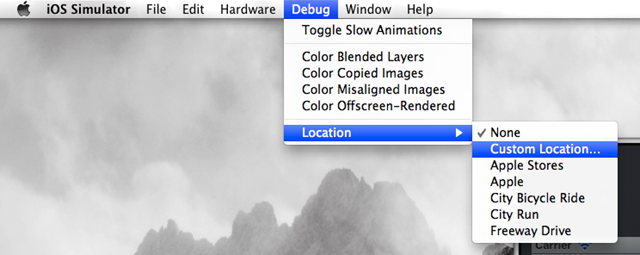
After a quick look at the iOS Simulator’s debug menu I found what I was looking for. Apple has changed the Location options for the better. You now have full control over their settings, similar to the Android emulator, just much easier.

By default the simulator will have no location defined.  Depending on your development platform this can surface in a variety of errors.  Below is the error Appcelerator’s Titanium provides.

step1

To define your location, simply open the iOS Simulator and select the Debug option, then select Location.  This has seven options:

  1. None – This will not return any location information. You can use this to test when the GPS is unavailable.
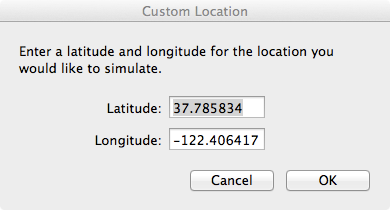
  2. Custom Location – This allows you to set a specific Latitude and Longitude.
  3. Apple Stores – Uses an Apple Store’s coordinates
  4. Apple – Apple headquarters coordinates
  5. City Bicycle Ride – Simulation of a bicycle ride in Cupertino, ie the device simulate it is moving
  6. City Run – Simulation of a run in Cupertino, ie the device simulate it is moving
  7. Freeway Drive – Simulation of a drive in Cupertino, ie the device simulate it is moving

I have a series of geo location test cases, so I tend to use the Custom Location option since it allows me to enter specific coordinates.

step2

This will open a dialog that allows you to enter your Latitude and Longitude.

step3

Press Ok, and you are ready to go.  The iOS Simulator will remember your Custom Location between restarts of the simulator.  You will need to remember to update your Latitude and Longitude when testing different scenarios or traveling. But Apple has made the process extremely straight forward.

done

The new location options in the iOS 5 simulator are a big improvement for anyone doing location based applications.