var referenceLibrary = require('bencoding.dictionary').createReferenceLibrary();
Ti.API.info("This feature is only supported in iOS5 and above");
Ti.API.info("Check if we have the min OS version needed");
Ti.API.info("Is Supported? => " + referenceLibrary.isSupported());
Ti.API.info("Check if Apple knows the definition for fanboy");
var hasDefinition = referenceLibrary.wordHasDefinition('fanboy');
Ti.API.info("Term has definition =>" + hasDefinition);

if(!hasDefinition){
alert('You can still call showDialog it will just display a message that no definition was found');
}else{
//If you want you can define some callbacks
function termDialogBoxHasBeenClosed(){
Ti.API.info("I'm a callback when the Definition Dialog Box has been closed.");
};
function termDialogHadError(e){
Ti.API.info("I'm a callback when an error happens this error is due to: " + e.error);
};

Ti.API.info("You can add an event to be called if there is an error");
referenceLibrary.addEventListener('errored', termDialogHadError);

Ti.API.info("You can add an event to be called when the definition dialog is closed");
referenceLibrary.addEventListener('closed', termDialogBoxHasBeenClosed);

//Open the definition dialog window
referenceLibrary.showDialog({
//This is the term to search for (REQUIRED)
term:'fanboy',
//Indicate if the dialog should be animated on open (OPTIONAL)
animated:true,
//This is the transition style (OPTIONAL)
modalTransitionStyle:Ti.UI.iPhone.MODAL_TRANSITION_STYLE_FLIP_HORIZONTAL
});
}
Over the last few weeks I’ve been working on creating several Titanium modules. To make life easier for myself and my users I’m using html for all of my documentation. The current Titanium 1.8.X module build script doesn’t yet support html documentation., which isn’t a big deal since you can add it into the zip directly.
The below script adds support for html into the build script itself.
Open your build.py script located in the root of your module project.
Look for def generate_doc(config)
Replace that code block with the one below.
def generate_doc(config):
	docdir = os.path.join(cwd,'documentation')
	if not os.path.exists(docdir):
		print "Couldn't find documentation file at: %s" % docdir
		return None
	sdk = find_sdk(config)
	support_dir = os.path.join(sdk,'module','support')
	sys.path.append(support_dir)
	try:
		import markdown2 as markdown
	except ImportError:
		import markdown
	documentation = []
	for file in os.listdir(docdir):
		if file in ignoreFiles or os.path.isdir(os.path.join(docdir, file)):
			continue
		html = open(os.path.join(docdir,file)).read()
		if file.lower().endswith('.md'):
			html = markdown.markdown(html)
		else:
			documentation.append({file:html});

	return documentation
This solution worked for me, hopefully it will work for you.
I am happy to announce the first release of the TiNetworkHelpers project. This module provides support for Carrier information, SSID, BSSID, and Apple’s Reachability utility class.
Download the release – You can download the compiled release here. Before doing so, please read the “Getting Started” section below to make sure you have all dependencies.
Work with the code – to learn more about the project, and download the source please head over to the repo on github here.
Currently TiNetworkHelpers is only available on iOS, with Android support coming shortly.
Below is a full description of the project and the features available in the first release.
Getting Started
Before installing TiNetworkHelpers there are a few things you need to keep in mind.
You need Titanium 1.8.1 or greater. I recommend downloading the CI build available here. When downloading please make sure you select the 1.8.X branch. For instructions on how to install a CI Build please read this article.
This module has been tested only on iOS 5. There isn’t any iOS 5 specific features referenced, so it should work on iOS 4.3+.
You can download a compiled release of TiNetworkHelpers here. If you need instructions on how to install a 3rd party module please read this.
If you are building from source, you will want to modify the titanium.xcconfig file to match your installation directories.
Import the module
After installing the module you need to reference the TiNetworkHelpers module by using the following require command.
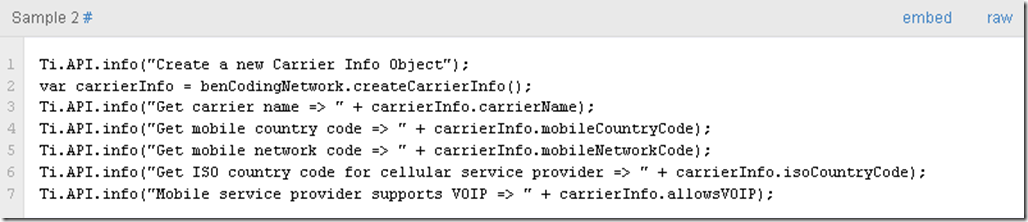
CarrierInfo provides access to the native CTTelephonyNetworkInfo framework object.
carrierName – Provides access to the carrier name associated with the device’s SIM.
mobileCountryCode – Provides access to the carrier Mobile Country Codes (MCCs). This is the country code associated with the carrier on the SIM. Here is a listing off all the Mobile Country Codes on wikipedia.
mobileNetworkCode – Provides access to the carrier’s Mobile Network Code. This is the network code associated with the carrier on the SIM. Here is a listing off all the Mobile Network Codes for the US on wikipedia.
isoCountryCode – The ISO country code for the user’s cellular service provider. This is the carrier on the SIM. Here is a listing of ISO codes on wikipedia
allowsVOIP – Indicates if the carrier allows VoIP calls to be made on its network.
The Reachability component provides a wrapper for the Apple Reachability module. For more about Reachability please see the Apple documentation here.
reachabilityForLocalWiFi – This method provides a boolean result if Local Wifi is enabled. reachabilityWithHostName – This method takes a host name, such as http://www.apple.com and returns a boolean result if the host is reachable. hostNameReachableBy – This method takes a host name, such as http://www.benCoding.com and returns a constant with how it is reachable.
Since the introduction of iOS 4 Apple has supported background services for the below listed specific tasks.
Audio – The application plays audible content to the user while in the background.
Location – The application keeps users informed of their location, even while running in the background.
VOIP – The application provides the ability for the user to make phone calls using an Internet connection.
Titanium has always supported these through the use of a custom plist. In recent versions of Titanium allow you to manage this directly within your project’s tiapp.xml file.
To use this, simply add the backgroundModes node to your iphone configuration section. After adding this configuration block, clean your Titanium project and run your project again. Titanium will automatically create a new info.plist with your new backgroundModes.
Something to consider
Please remember that Apple has very specific guidelines around these configuration options and will perform specific tests during the approval process if your info.plist has any backgroundModes keys.
For example, if you have the audio key but do not use this feature correctly you will receive the below rejection notice for Apple.
While your app has declared support for audio in the UIBackgroundModes key in your Info.plist, no audio is played when users switch to another application. The audio background mode is meant for applications with audio streams, like radio applications. You’ll need to provide audible content to the user while the app is in the background or remove the “audio” setting from the UIBackgroundModes key.
For more details please see the Apple documentation here.
If you are interested in the Titanium implementation details, please read this Jira ticket.
The Fire is based off a heavily modified version of Android 2.3.3 so it was pretty easy to get my first app up and running.
Using the Titanium Sample app, KitchenSink, I’ve outlined below how you can get your Titanium development environment setup and your apps running on the Kindle Fire.
Getting the Kindle Ready
Just like most Android devices you need to allow for the installation of apps from unknown sources.
Open the options menu
Select More…
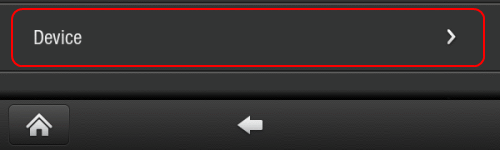
Select the “Device” option
Toggle the “Allow Installation of Applications From Unknown Sources” to On
We are now ready to be able to deploy our own apps.
Setup our USB connection
So that our computer can see the Kindle when it is connected via USB we’ll have to make a small update to the adb_usb.ini file.
Navigate to ~/.android and open the adb_usb.ini file your favorite text editor
Type 0X1949 at the end of the file, then save and close adb_usb.ini.
Stop ADB server with the adb kill-server command, then use the adb devices command. You should see the Kindle Fire listed.
The Kindle Fire isn’t a Google Approved build of Android. This means that we don’t have access to a few of the native APIs such as Maps. To handle this, we need to make a few adjustments to the KitchenSink demo.
Remove the map api keys from the tiapp.xml file
Remove any of the fields that have references to mapViews.
All of the files that contain references to the MapView are in the Examples folder.
Remove the following:
add_show_views.js
mixing_views_1.js
map_view1.js
map_view2.js
This will allow you to push to device without any issues. Make sure you update the views.js to remove any references to the files you deleted, or you might tap on a link that doesn’t exist any longer.
Creating the Emulator
Titanium Studio manages the linkage between the Android AVD images and your projects for you. It doesn’t seem as though there is an option for you to specify which AVD image you would like to use.
The best work around seems to be doing the following:
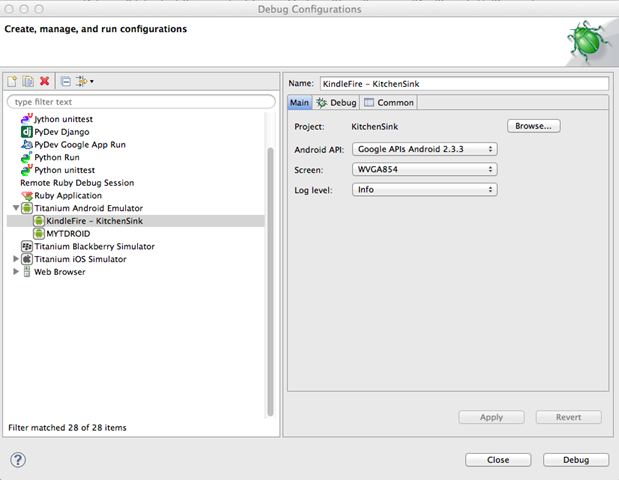
When in the KitchenSink project go to Debug Configurations under the Run menu
This will launch the emulator, wait until you see the KitchenSink app open in the emulator. This means the AVD has fully been created.
Now close the Android Emulator
Open the Android AVD Manager. You can do this by going into your Android / Tools folder and issuing the below terminal command
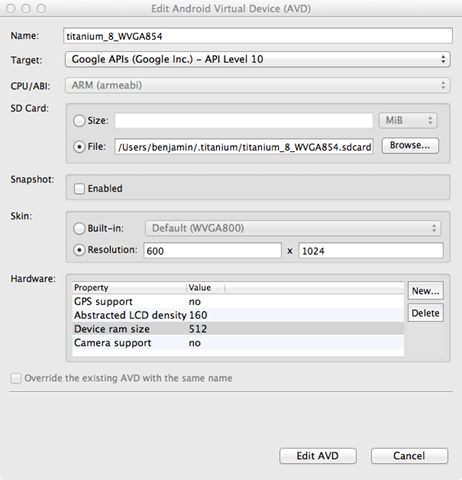
This will load the Android AVD Manager as shown below.
Select the AVD Image we just created in Titanium Studio and press the Edit button.
We now can start to update the AVD to have the same specs as the Kindle Fire. You will want to adjust the resolution to be 600 x 1024, turn off GPS support, change the LCD density to 160, and increase the RAM to 512. You will also want to remove Camera support.
When finished press the “Edit AVD” button to save your changes.
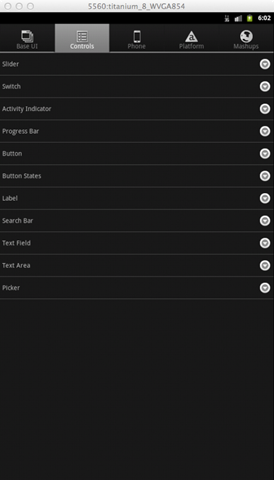
Go back into Titanium Studio and Run the KitchenSink project again in Debug. Your emulator should now look like the below.
Your now ready to test in the emulator and when ready push to device.
Pushing to Device
This is the easy part. Simply connect your Kindle Fire via USB and it your computer a couple of seconds to identify your device.
Before starting the deployment process from within Titanium Studio I recommend updating the tiapp.xml file. You can simply add/remove a space at the end of the file. This will force Titanium to perform a full build during the deployment process.
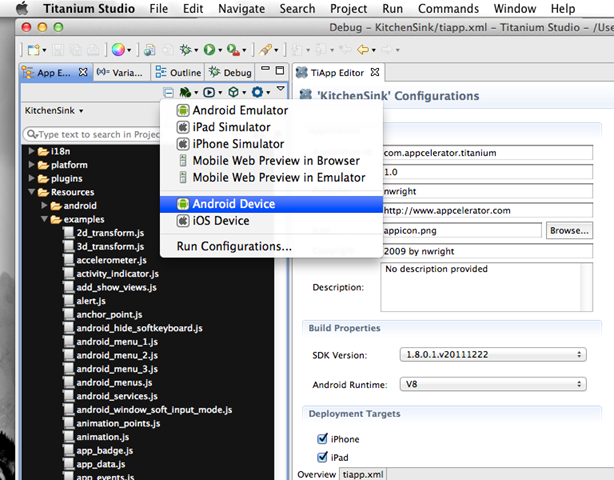
To start the deployment process, select the Deploy to Device option on your project menu as shown below.
The terminal window in Titanium Studio will indicate when it has connected to your Kindle Fire and will automatically start the build process. Sometimes there is a connection problem and the deployment process cannot find your device. This usually can be fixed by unplugging the USB cable connecting your device, then plugging it back into your computer. You might need to restart the deployment process again.
Does it work on the device?
The simple answer is yes. There are a few things that don’t work due to hardware or software limitations. The Kindle Fire’s theme works well with the Titanium native controls providing a new look and feel considering the app was never designed for this platform.
Overall the KitchenSink works very well on the Kindle Fire. Scrolling, page loads, and general navigation are faster then my Nexus S ( not running the V8 runtime ).
What does it look like?
Using Android Screencast I’ve put together a short walk thru of the Kindle Fire running KitchenSink.
What doesn’t work?
There are a few things that don’t seem to be working on the device.
MapView – We already talked about this, but the MapView doesn’t work as this is a forked version of Android
Geo Location – The Titanium.Geolocation.getCurrentPosition method returns “no providers are available”. I guess this is expected as the Kindle Fire doesn’t provide GPS support. Even if you use setPreferredProvider=”network” you will receive the “no providers” error. Seems like Amazon completely removed the geo stack.
Camera– There is no camera on the Fire so it goes without saying any feature that requires this will not work. The Titanium framework gives you a method to check if a camera is available. If you use this, you wont have any issues.
Closing comments
Other then the obvious screen size differences and lack of mapView support using Titanium on the Kindle Fire doesn’t appear to be any different then building for the Android Phone platforms.
One thing is clear, just as with iPad apps, you will want to design a different user experience for the Kindle Fire. The Kindle’s bottom navigator and darkened theme will most likely have a large impact on your overall app design.
I look forward to experimenting with this new form factor as it is smaller then an iPad but bigger then a phone.
I continue to be impressed with how easy and quickly you can get an app running using Titanium. The fact it only took removing a few files to get the KitchenSink API example app up and running is another example of the flexibility and durability of the Titanium platform.
The 1.8 release of Titanium contains several iOS 5 compatibility updates. One of the more interesting updates is the installation directory for database have changed.
In prior versions you could access the database like below:
function fetchDbFile(dbName){
    Ti.API.info('We build the directory path to find ' + dbName + '.sql');
    return Ti.Filesystem.getFile(Ti.Filesystem.applicationSupportDirectory, 'database', dbName + '.sql');
};

var myDbName = 'foo123';
Ti.API.info('We create a db to test our method')
var testDb = Ti.Database.open(myDbName);
Ti.API.info('No we get the file')
var dbFile = fetchDbFile(myDbName);
Ti.API.info('Did we find it? ' + dbFile.exists());
Ti.API.info('Here is the nativePath ' + dbFile.nativePath);
Ti.API.info('Example Finished');
With iOS 5, Apple has introduced new guidelines that have altered the database installation directory. Databases are now installed into the Private Documents Directory. There currently is not a property for accessing this directory in the Ti.Filesystem module.
But since the Ti.Filesystem module only proxies the url request to iOS you can reference it directly. Below is a method that demonstrations how to do this.
function privateDocumentsDirectory(){

    Ti.API.info('We need to open a file object to get our directory info');
    var testFile = Ti.Filesystem.getFile(Ti.Filesystem.applicationDataDirectory);
    Ti.API.info('Now we remove the Documents folder reference');
    var privateDir = testFile.nativePath.replace('Documents/','');
    Ti.API.info('This is our base App Directory =' + privateDir);
    Ti.API.info('Now we add the Private Documents Directory');
    privateDir+='Library/Private%20Documents/';
    Ti.API.info('Our new path is ' + privateDir);
    return privateDir;
};

var myDbName = 'foo123';
Ti.API.info('We create a db to test our method')
var testDb = Ti.Database.open(myDbName);
var testNativePath = testDb.getFile().nativePath;
Ti.API.info('Our nativePath to test against is ' + testNativePath + ' this is what we need to end up with');
var privateDocFolder = privateDocumentsDirectory();
Ti.API.info('Our Private Document Folde is ' + privateDocFolder);
Ti.API.info("Let's see if we can find our database");
var dbCheck = Ti.Filesystem.getFile(privateDocFolder, myDbName+ '.sql');
Ti.API.info('Did we find it? ' + dbCheck.exists());
Ti.API.info('Do our file paths match? ' + (dbCheck.nativePath==testNativePath));
Ti.API.info('Example Finished');
To help work with your existing databases Appcelerator has added a getFile property onto the database object. This is extremely helpful if you are performing any back-up operations yourself. See this link to read more.
On OS X simply open /Applications/Titanium Studio/TitaniumStudio.app/Contents/MacOS/TitaniumStudio.ini and add -Dtitanium.hideDashboard=true to the last line in the file.








 bencoding