DDMS is a utility that provides a ton of useful information. I highly recommend reading its documentation here.
If your IDE supports the ADT plugin you can even use DDMS within your IDE. To make things easier, I’ve covered how to use DDMS as a stand alone application below. Please reference your IDE’s documentation for ADT support and installation instructions.
Finding DDMS
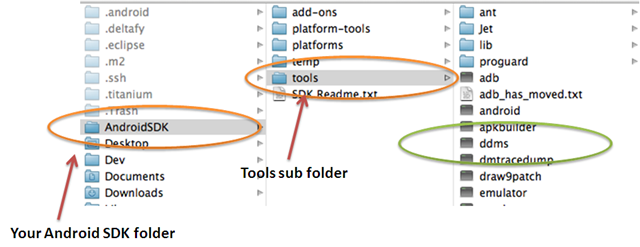
DDMS is located in <Your Android SDK Folder> / tools. The below example shows this installation path where the root SDK folder is called AndroidSDK. Depending on your installation your path might be different.
Opening DDMS
To launch DDMS in stand alone mode, simply double click on DDMS. You will see a DOS or terminal window for a second when the application is loading.
Setting Your Location
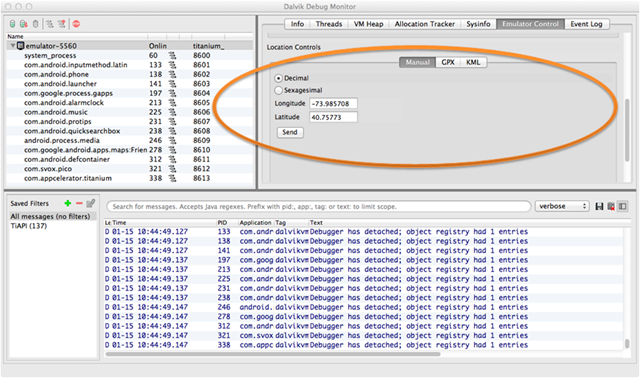
Now that you have DDMS open, you want to select your emulator from the list of devices on the left hand side navigator as pictured below.
After selecting your device, click on the “Emulator Control” tab on the right tabbar as pictured below.
This tab lists all of the emulator settings you can update using DDMS. The location options are at the bottom of the tab.
DDMS allows you to set the location in the below ways.
Manual – set the location by manually specifying decimal or sexagesimal longitude and latitude values.
GPX – GPS eXchange file
KML – Keyhole Markup Language file
The below shows using the manual option to set the coordinates to New York’s Time Square. After updating your location information press the “Send” button. This will update the emulator with your new location information. Please note you might need to restart your App or perform a location lookup in the emulator’s native Map App in order to jump start the process.
It seems almost all of the Apps I write these days are location aware in some regard. I’ve written here about the new iOS Simulator’s location setting and wanted to show the same for the Android Emulator.
There are several different ways to sent the emulator’s location information. Since I use a few different development environments I like to use Terminal since it let’s me keep the same workflow no matter the development platform.
Step 1: Platform Tools
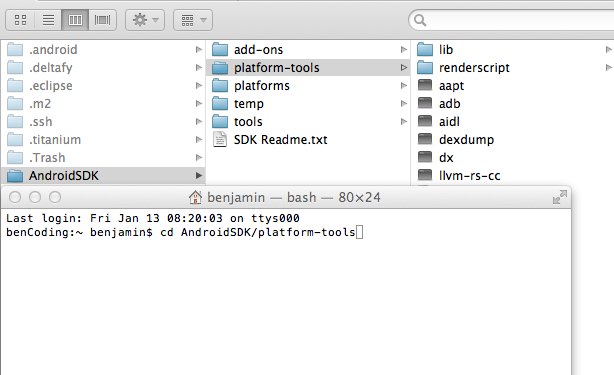
Open Terminal and go to your AndroidSDK / platform-tools directory. Android let’s you call the directory you install the Android SDK into anything. For this example, I’m using the name AndroidSDK.
Step 2: Finding Attached Devices
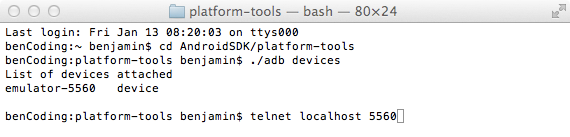
The adb utility allows us to query all of the devices (and emulators) that are currently attached to the system. To do this we use the adb devices command as shown below.
After pressing enter you will see a list of all the devices linked to the system. In this case there is only the emulator shown below.
Step 3: Connect To Emulator
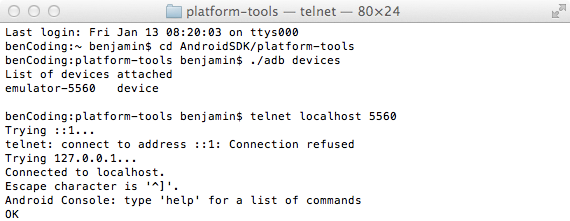
Using the information above we can telnet into the emulator using the below command.
This will connect you to the emulator as shown below.
This allows us to connect to the emulator directly and issue commands.
Step 4: Geo Fix A Location
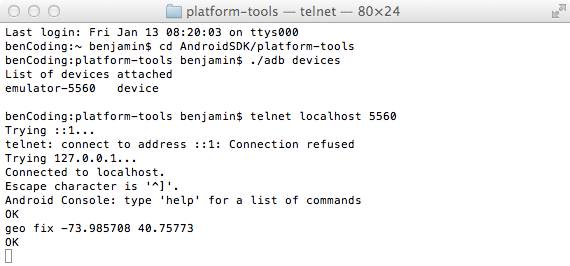
Now we’ve connected to the emulator, we can use the geo fix command to set our location coordinates. The below example shows setting the coordinates for Time Square in New York City.
The format is:
You can read more about the different geo commands at the bottom of this page.
Video Walk Through
Here is a short video walk through of the above steps:
Since the introduction of iOS 4 Apple has supported background services for the below listed specific tasks.
Audio – The application plays audible content to the user while in the background.
Location – The application keeps users informed of their location, even while running in the background.
VOIP – The application provides the ability for the user to make phone calls using an Internet connection.
Titanium has always supported these through the use of a custom plist. In recent versions of Titanium allow you to manage this directly within your project’s tiapp.xml file.
To use this, simply add the backgroundModes node to your iphone configuration section. After adding this configuration block, clean your Titanium project and run your project again. Titanium will automatically create a new info.plist with your new backgroundModes.
Something to consider
Please remember that Apple has very specific guidelines around these configuration options and will perform specific tests during the approval process if your info.plist has any backgroundModes keys.
For example, if you have the audio key but do not use this feature correctly you will receive the below rejection notice for Apple.
While your app has declared support for audio in the UIBackgroundModes key in your Info.plist, no audio is played when users switch to another application. The audio background mode is meant for applications with audio streams, like radio applications. You’ll need to provide audible content to the user while the app is in the background or remove the “audio” setting from the UIBackgroundModes key.
For more details please see the Apple documentation here.
If you are interested in the Titanium implementation details, please read this Jira ticket.
The Fire is based off a heavily modified version of Android 2.3.3 so it was pretty easy to get my first app up and running.
Using the Titanium Sample app, KitchenSink, I’ve outlined below how you can get your Titanium development environment setup and your apps running on the Kindle Fire.
Getting the Kindle Ready
Just like most Android devices you need to allow for the installation of apps from unknown sources.
Open the options menu
Select More…
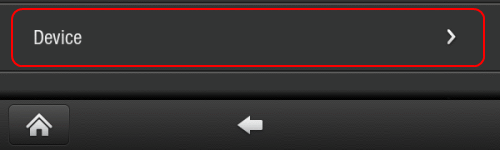
Select the “Device” option
Toggle the “Allow Installation of Applications From Unknown Sources” to On
We are now ready to be able to deploy our own apps.
Setup our USB connection
So that our computer can see the Kindle when it is connected via USB we’ll have to make a small update to the adb_usb.ini file.
Navigate to ~/.android and open the adb_usb.ini file your favorite text editor
Type 0X1949 at the end of the file, then save and close adb_usb.ini.
Stop ADB server with the adb kill-server command, then use the adb devices command. You should see the Kindle Fire listed.
The Kindle Fire isn’t a Google Approved build of Android. This means that we don’t have access to a few of the native APIs such as Maps. To handle this, we need to make a few adjustments to the KitchenSink demo.
Remove the map api keys from the tiapp.xml file
Remove any of the fields that have references to mapViews.
All of the files that contain references to the MapView are in the Examples folder.
Remove the following:
add_show_views.js
mixing_views_1.js
map_view1.js
map_view2.js
This will allow you to push to device without any issues. Make sure you update the views.js to remove any references to the files you deleted, or you might tap on a link that doesn’t exist any longer.
Creating the Emulator
Titanium Studio manages the linkage between the Android AVD images and your projects for you. It doesn’t seem as though there is an option for you to specify which AVD image you would like to use.
The best work around seems to be doing the following:
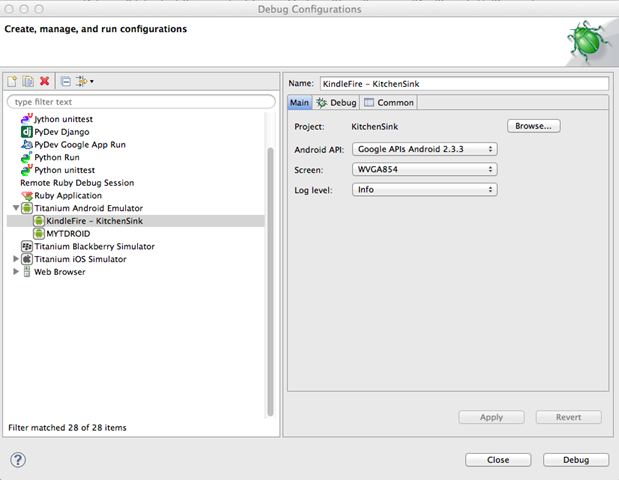
When in the KitchenSink project go to Debug Configurations under the Run menu
This will launch the emulator, wait until you see the KitchenSink app open in the emulator. This means the AVD has fully been created.
Now close the Android Emulator
Open the Android AVD Manager. You can do this by going into your Android / Tools folder and issuing the below terminal command
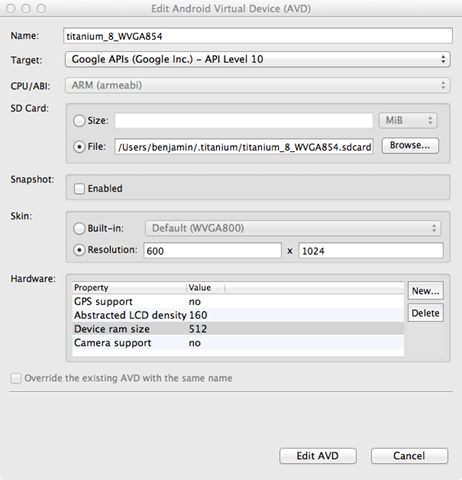
This will load the Android AVD Manager as shown below.
Select the AVD Image we just created in Titanium Studio and press the Edit button.
We now can start to update the AVD to have the same specs as the Kindle Fire. You will want to adjust the resolution to be 600 x 1024, turn off GPS support, change the LCD density to 160, and increase the RAM to 512. You will also want to remove Camera support.
When finished press the “Edit AVD” button to save your changes.
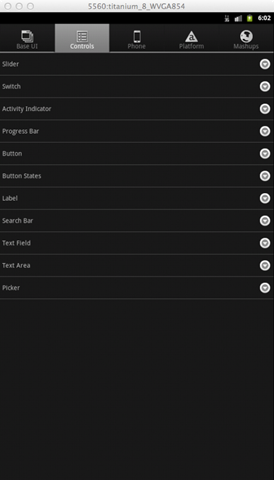
Go back into Titanium Studio and Run the KitchenSink project again in Debug. Your emulator should now look like the below.
Your now ready to test in the emulator and when ready push to device.
Pushing to Device
This is the easy part. Simply connect your Kindle Fire via USB and it your computer a couple of seconds to identify your device.
Before starting the deployment process from within Titanium Studio I recommend updating the tiapp.xml file. You can simply add/remove a space at the end of the file. This will force Titanium to perform a full build during the deployment process.
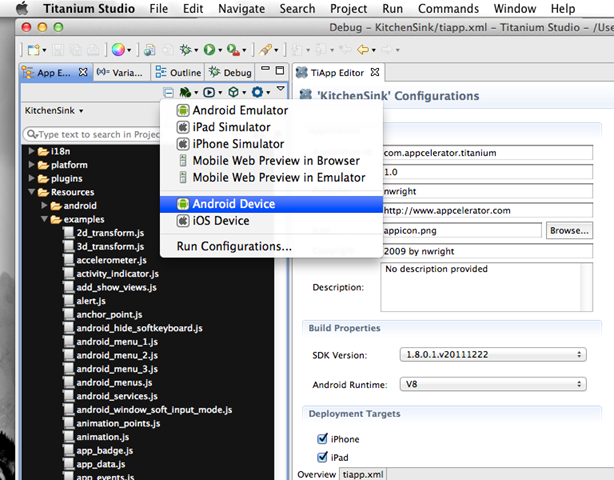
To start the deployment process, select the Deploy to Device option on your project menu as shown below.
The terminal window in Titanium Studio will indicate when it has connected to your Kindle Fire and will automatically start the build process. Sometimes there is a connection problem and the deployment process cannot find your device. This usually can be fixed by unplugging the USB cable connecting your device, then plugging it back into your computer. You might need to restart the deployment process again.
Does it work on the device?
The simple answer is yes. There are a few things that don’t work due to hardware or software limitations. The Kindle Fire’s theme works well with the Titanium native controls providing a new look and feel considering the app was never designed for this platform.
Overall the KitchenSink works very well on the Kindle Fire. Scrolling, page loads, and general navigation are faster then my Nexus S ( not running the V8 runtime ).
What does it look like?
Using Android Screencast I’ve put together a short walk thru of the Kindle Fire running KitchenSink.
What doesn’t work?
There are a few things that don’t seem to be working on the device.
MapView – We already talked about this, but the MapView doesn’t work as this is a forked version of Android
Geo Location – The Titanium.Geolocation.getCurrentPosition method returns “no providers are available”. I guess this is expected as the Kindle Fire doesn’t provide GPS support. Even if you use setPreferredProvider=”network” you will receive the “no providers” error. Seems like Amazon completely removed the geo stack.
Camera– There is no camera on the Fire so it goes without saying any feature that requires this will not work. The Titanium framework gives you a method to check if a camera is available. If you use this, you wont have any issues.
Closing comments
Other then the obvious screen size differences and lack of mapView support using Titanium on the Kindle Fire doesn’t appear to be any different then building for the Android Phone platforms.
One thing is clear, just as with iPad apps, you will want to design a different user experience for the Kindle Fire. The Kindle’s bottom navigator and darkened theme will most likely have a large impact on your overall app design.
I look forward to experimenting with this new form factor as it is smaller then an iPad but bigger then a phone.
I continue to be impressed with how easy and quickly you can get an app running using Titanium. The fact it only took removing a few files to get the KitchenSink API example app up and running is another example of the flexibility and durability of the Titanium platform.
The 1.8 release of Titanium contains several iOS 5 compatibility updates. One of the more interesting updates is the installation directory for database have changed.
In prior versions you could access the database like below:
function fetchDbFile(dbName){
    Ti.API.info('We build the directory path to find ' + dbName + '.sql');
    return Ti.Filesystem.getFile(Ti.Filesystem.applicationSupportDirectory, 'database', dbName + '.sql');
};

var myDbName = 'foo123';
Ti.API.info('We create a db to test our method')
var testDb = Ti.Database.open(myDbName);
Ti.API.info('No we get the file')
var dbFile = fetchDbFile(myDbName);
Ti.API.info('Did we find it? ' + dbFile.exists());
Ti.API.info('Here is the nativePath ' + dbFile.nativePath);
Ti.API.info('Example Finished');
With iOS 5, Apple has introduced new guidelines that have altered the database installation directory. Databases are now installed into the Private Documents Directory. There currently is not a property for accessing this directory in the Ti.Filesystem module.
But since the Ti.Filesystem module only proxies the url request to iOS you can reference it directly. Below is a method that demonstrations how to do this.
function privateDocumentsDirectory(){

    Ti.API.info('We need to open a file object to get our directory info');
    var testFile = Ti.Filesystem.getFile(Ti.Filesystem.applicationDataDirectory);
    Ti.API.info('Now we remove the Documents folder reference');
    var privateDir = testFile.nativePath.replace('Documents/','');
    Ti.API.info('This is our base App Directory =' + privateDir);
    Ti.API.info('Now we add the Private Documents Directory');
    privateDir+='Library/Private%20Documents/';
    Ti.API.info('Our new path is ' + privateDir);
    return privateDir;
};

var myDbName = 'foo123';
Ti.API.info('We create a db to test our method')
var testDb = Ti.Database.open(myDbName);
var testNativePath = testDb.getFile().nativePath;
Ti.API.info('Our nativePath to test against is ' + testNativePath + ' this is what we need to end up with');
var privateDocFolder = privateDocumentsDirectory();
Ti.API.info('Our Private Document Folde is ' + privateDocFolder);
Ti.API.info("Let's see if we can find our database");
var dbCheck = Ti.Filesystem.getFile(privateDocFolder, myDbName+ '.sql');
Ti.API.info('Did we find it? ' + dbCheck.exists());
Ti.API.info('Do our file paths match? ' + (dbCheck.nativePath==testNativePath));
Ti.API.info('Example Finished');
To help work with your existing databases Appcelerator has added a getFile property onto the database object. This is extremely helpful if you are performing any back-up operations yourself. See this link to read more.
On OS X simply open /Applications/Titanium Studio/TitaniumStudio.app/Contents/MacOS/TitaniumStudio.ini and add -Dtitanium.hideDashboard=true to the last line in the file.
After upgrading my development tools to XCode 4.2 and iOS 5, I started to run into location unavailable errors when running in the iOS Simulator.
Having battled with the Android Emulator over the years, I figured there was a new location services setting I missed.
After a quick look at the iOS Simulator’s debug menu I found what I was looking for. Apple has changed the Location options for the better. You now have full control over their settings, similar to the Android emulator, just much easier.
By default the simulator will have no location defined. Depending on your development platform this can surface in a variety of errors. Below is the error Appcelerator’s Titanium provides.
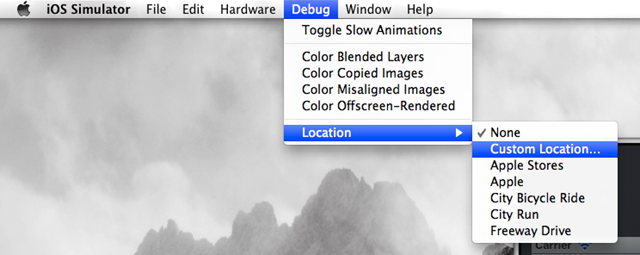
To define your location, simply open the iOS Simulator and select the Debug option, then select Location. This has seven options:
None – This will not return any location information. You can use this to test when the GPS is unavailable.
Custom Location – This allows you to set a specific Latitude and Longitude.
Apple Stores – Uses an Apple Store’s coordinates
Apple – Apple headquarters coordinates
City Bicycle Ride – Simulation of a bicycle ride in Cupertino, ie the device simulate it is moving
City Run – Simulation of a run in Cupertino, ie the device simulate it is moving
Freeway Drive – Simulation of a drive in Cupertino, ie the device simulate it is moving
I have a series of geo location test cases, so I tend to use the Custom Location option since it allows me to enter specific coordinates.
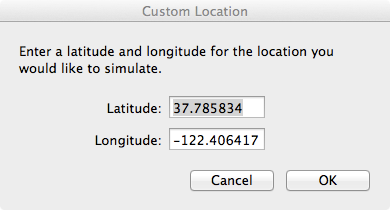
This will open a dialog that allows you to enter your Latitude and Longitude.
Press Ok, and you are ready to go. The iOS Simulator will remember your Custom Location between restarts of the simulator. You will need to remember to update your Latitude and Longitude when testing different scenarios or traveling. But Apple has made the process extremely straight forward.
The new location options in the iOS 5 simulator are a big improvement for anyone doing location based applications.













 bencoding