Using BOOT_COMPLETED in Titanium

It is a common requirement to need to restart your app if the user restarts the device.  Although this requirement is common, it can get tricky quickly.  For example do you want to restart in the foreground or background?  What if you want to send a notification instead?

The Android.Tools project has been updated to handle a majority of these scenarios using the new BootReceiver.  This component allows you to do the following:

  • On BOOT_COMPLETED restart your app in either the foreground or background
  • On BOOT_COMPLETED create a notification with information defined in your project’s tiapp.xml
  • You can also use Titanium Properties to configure the above options from within your Titanium app. 

How does it work?

The BootReceiver is configured to work similar to how a native app would when it receives the BOOT_COMPLETED broadcast.  Since Titanium might not yet be loaded, the module will help bootstrap your app based on the configuration elements in your tiapp.xml.

Warning: This functionality requires you update your tiapp.xml file with a few specific elements. I’ve included samples for each scenario, but please plan on spending alittle time exploring in order to get the configurations for your app working properly.

Finding the tiapp.xml entries

The below steps cover how to create the tiapp.xml entries needed for this module to work.

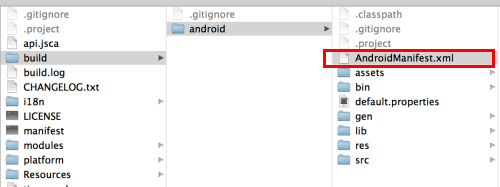
  1. Before installing the module, you will want to build your project for the simulator.  It doesn’t matter if the app is empty or event runs. The goal is to simply have Titanium generate a AndroidManifest.xml file.  You can find this file in your Project/build/android folder as illustrated below in red.

    AndroidManifest.xml Path

  2. To avoid the 2373 restart bug, you will need to add the following properties into your tiapp.xml file.

    
        <property name="ti.android.bug2373.finishfalseroot" type="bool">true</property>
        <property name="ti.android.bug2373.disableDetection" type="bool">true</property>
        <property name="ti.android.bug2373.restartDelay" type="int">500</property>
        <property name="ti.android.bug2373.finishDelay" type="int">0</property>
        <property name="ti.android.bug2373.skipAlert" type="bool">true</property>
        <property name="ti.android.bug2373.message">Initializing</property>
        <property name="ti.android.bug2373.title">Restart Required</property>
        <property name="ti.android.bug2373.buttonText">Continue</property>


  3. Using the information from step #1’s AndroidManifest.xml add an android configuration node to your tiapp.xml. 
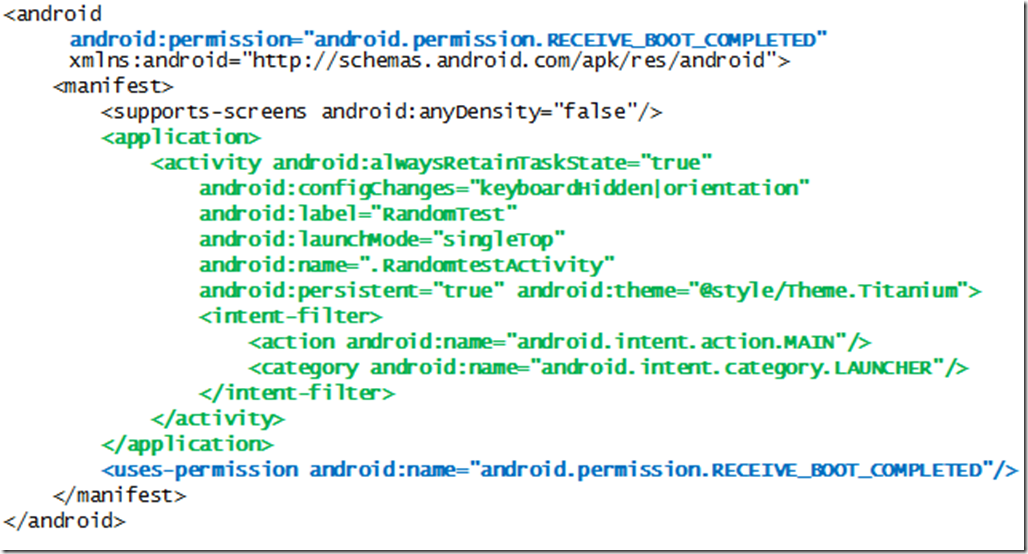
    tiapp.xml example

    (a) Add the two permission lines highlighted in Blue.

    (b) Add the application node from your AndroidManifest.xml collected in step #1. If you are copying and pasting the example, make sure you change the names to match your project information.
Scenario 1: Restart

The first scenario supported by the module is to restart your Titanium app upon receipt of the BOOT_COMPLETED broadcast.

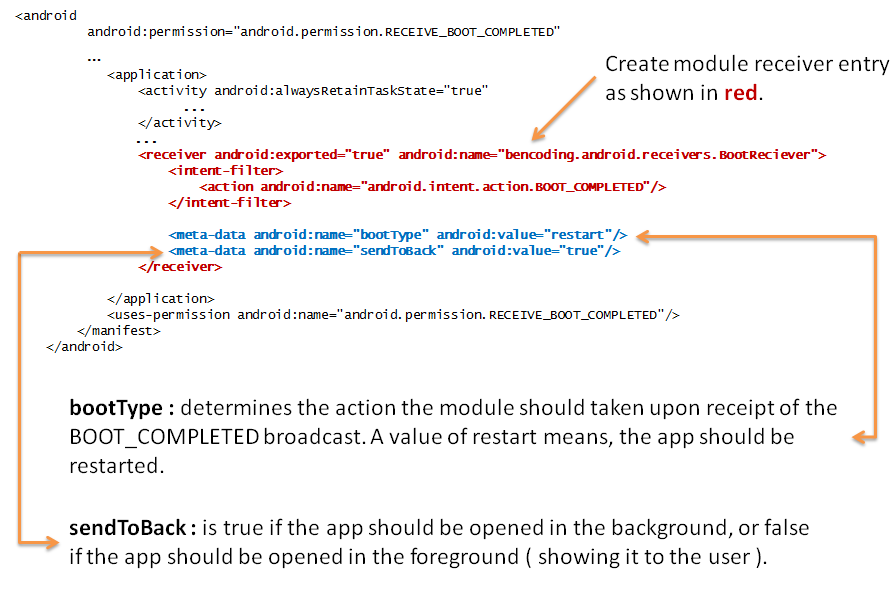
The following diagram demonstrates how to create a receiver entry in your tiapp.xml to use the BootReceiver module.  The section shown in red illstrates the receiver and intent-filter entries needed to be made in order for your app to subscribe to the BOOT_COMPLETED broadcast.
Scenario 1 Diagram

  • bootType : This meta-data element is required and tells the module which action to take. By using the restart option, the module will restart your application upon receipt of the BOOT_COMPLETED broadcast.
  • sendToBack : This meta-data element is required if using the bootType of restart. If true, your app will be restarted in the background upon receipt of the BOOT_COMPLETED broadcast. If false, your app will be restarted in the foreground and the user will be presented with the first window of your app.

Please see the sample tiapp.xml and app.js for the full example files.

Scenario 2: Notification

The second scenario supported by the module is publish a notification upon receipt of the BOOT_COMPLETED broadcast.

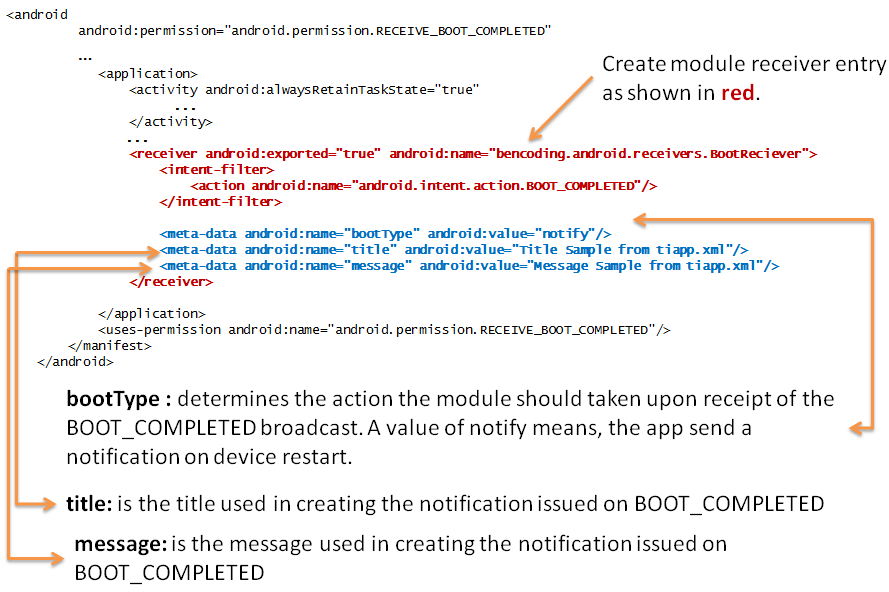
The following diagram demonstrates how to create a receiver entry in your tiapp.xml to use the BootReceiver module.  The section shown in red illustrates the receiver and intent-filter entries needed to be made in order for your app to subscribe to the BOOT_COMPLETED broadcast.
 

Scenario 2 Diagram

Meta-Data Elements

  • bootType : This meta-data element is required and tells the module which action to take. By using the notify option, the module will publish a notification using the title and message properties defined in the tiapp.xml receipt of the BOOT_COMPLETED broadcast.
  • title : This meta-data element is required if using the bootType of notify. The title is used to create the title for the notification that will be published after receipt of the BOOT_COMPLETED broadcast.
  • message : This meta-data element is required if using the bootType of notify. The message is used to create the message body for the notification that will be published after receipt of the BOOT_COMPLETED broadcast.

Please see the sample tiapp.xml and app.js for the full example files.

Scenario 3: Using Properties

Allowing for the app at runtime to how to handle the BOOT_COMPLETED broadcast allows for handling more complex use cases but requires additional setup.  Titanium Properties are mapped to configuration elements in your tiapp.xml.  The value from these specific Titanium properties are then to determine the correct action to be taken upon receiving the BOOT_COMPLETED broadcast.

Scenario 3 Diagram

Meta-Data Elements

  • bootType : This meta-data element is required and tells the module which action to take. By using the propertyBased option, the module will look at the following properties to determine which action to take.
  • enabled_property_to_reference : This android:value element contains a reference to the Titanium Property the module will reference to see if this feature has been enabled. This property must contain a Boolean value and is false by default.
  • bootType_property_to_reference : This android:value element contains a reference to the Titanium Property the module will reference to see what action to perform. Just like the primary bootType element, you can use restart or notify to perform the desired actions. Please note all configuration elements such as title, message, sendToBack will be read from the Titanium Properties mapped in your tiapp.xml file.
  • sendToBack_property_to_reference : This android:value element contains a reference to the Titanium Property the module will reference to see if the app should be restarted in the foreground or background.. This property must contain a Boolean value and is true by default. Please note: This property is only used if the Titanium Property define in bootType_property_to_reference is set to restart.
  • icon_property_to_reference : This android:value element contains a reference to the Titanium Property the module will reference to determine which Android Resource Id to use when creating the icon for the notification created on receipt of the BOOT_COMPLETED broadcast. Please note: This property is only used if the Titanium Property define in bootType_property_to_reference is set to notify.
  • title_property_to_reference : This android:value element contains a reference to the Titanium Property the module will reference to determine which Android Resource Id to use when creating the title for the notification created on receipt of the BOOT_COMPLETED broadcast. Please note: This property is only used if the Titanium Property define in bootType_property_to_reference is set to notify.
  • message_property_to_reference : This android:value element contains a reference to the Titanium Property the module will reference to determine which Android Resource Id to use when creating the message for the notification created on receipt of the BOOT_COMPLETED broadcast. Please note: This property is only used if the Titanium Property define in bootType_property_to_reference is set to notify.

Please see the sample tiapp.xml and app.js for the full example files.

How do I get the module?

The module and source are available on Github at https://github.com/benbahrenburg/benCoding.Android.Tools

Any examples?

Usage examples are available on Github at https://github.com/benbahrenburg/benCoding.Android.Tools/tree/master/example

A Few Helpful Xcode Plugins

Xcode is one of those IDEs that you either love or hate ( sometimes both ).  Coming from a Visual Studio background it has taken awhile to get used to the Xcode workflow.  I’m still hopeful that someone will create a Resharper like tool for Xcode, but until then I wanted to share some of the plugins that I’ve found useful.

Completion Dictionary

This plugin provides enhanced auto completion.  I bounce between languages frequently and this makes remembering the specific syntax I’m thinking of much easier.

http://www.obdev.at/products/completion-dictionary/index.html

Code Pilot

Calling this Spotlight for for Xcode would be an understatement.  Once you get used to Code Pilot you will rarely leave the keyboard. In short navigation made easy.

http://codepilot.cc/

Accessorizer

This plugin seems to be the closest thing Xcode has to Resharper.  With 40+ code generation actions and a ton of help this is well worth the small purchase price.

http://www.kevincallahan.org/software/accessorizer.html

Color Sense

This visual plugin provides a color picker when working with UIColor ( and NSColor ).  I rarely use this plugin, but when I do it is a time saver.

https://github.com/omz/Colorsense-for-Xcode

KSImageNamed-Xcode

Can’t remember whether that image you just added to the project was called button-separator-left or button-left-separator? Now you don’t have to, because this will autocomplete your imageNamed: calls like you’d expect. Just type in [NSImage imageNamed: or [UIImage imageNamed: and all the images in your project will conveniently appear in the autocomplete menu.

Read more about this plugin on Kent Sutherlands blog.

On Github: https://github.com/ksuther/KSImageNamed-Xcode

XcodeColors

XcodeColors allows you to use colors in the Xcode debugging console.

https://github.com/robbiehanson/XcodeColors

HOStringSense

If you work with large strings in your code you will definitely want to check out this plugin.  You can enter your full string into this plugin’s UI and it will correctly escape and insert the string into your code.

https://github.com/holtwick/HOStringSense-for-Xcode

Bracket Matcher

This plugin automatically inserting paired message sending brackets. Maybe I’m missing something but shouldn’t Xcode do this for you by default?

https://github.com/ciaran/xcode-bracket-matcher

Fixins

I recently found a github project by Dave Keck that has several Xcode plugins are extremely useful.  My favorite is the CurrentLineHighligher but would recommend checking them all out.

  • CurrentLineHighlighter
  • DisableAnimations
  • FindFix
  • HideDistractions
  • InhibitTabNextPlaceholder
  • TabAcceptsCompletion

https://github.com/davekeck/Xcode-4-Fixins

MiniXCode

Just want to focus on the code? This plugin allows you to reduce the sometimes massive Xcode toolbars.

https://github.com/omz/MiniXcode


AppCode

A commenter (Nick) mentioned that JetBrains has a great IDE called AppCode available at http://www.jetbrains.com/objc.

Enabling Nexus 4 Developer Options

Was lucky enough to get a Nexus 4 the other day and noticed the Developer options were missing.  It seems Google has hidden these options

After a few short searches it seems Google has chosen to hide the developer options by default and use a gesture to unlock. 

To enable developer features:

  1. Go to Settings -> About phone
  2. Scroll to the Build number
  3. Tap 7 times

This adds another row to your ListView with developer options.

The idea of unlocking advantaged OS features is one idea I hope others choose to borrow from Android.

Generating GUIDs in JavaScript

My last few projects required the use of GUIDs in a variety of ways.  While searching for an all JavaScript approach, I stumbled across a great stackoverflow question “How to create a GUID / UUID in Javascript?”Broofa provided an elegant solution to this problem which I’ve placed into a CommonJS module to make it easy to use in Titanium.

CommonJS Module:

exports.generate = function(){
	var guid = 'xxxxxxxx-xxxx-4xxx-yxxx-xxxxxxxxxxxx'.replace(/[xy]/g, function(c) {
	    var r = Math.random()*16|0, v = c == 'x' ? r : (r&0x3|0x8);
	     return v.toString(16);
	});		
	return guid;
};

View as gist

Generating a GUID in Titanium:

Ti.API.info("Require the CommonJS module");
var guid = require("guidtools");

Ti.API.info("Requesting a new guid");
Ti.API.info("GUID value = " + guid.generate());

View as gist

The above generates the below in your console window.

GUIDOutput

Titanium AppStore Tools

Looking for away to make sure your uses have upgraded to the latest version of your app?  Using the AppStoreHelpers object within the benCoding.iOS.Tools module you can easily query the Apple AppStore for the latest version.  You are then a simple version compare away from having the information needed to prompt your user to upgrade or version specific service calls.

Show me an example

var tools = require('bencoding.ios.tools');
var appStoreHelpers = tools.createAppStoreHelpers();
function queryResults(e){
    
    Ti.API.info(JSON.stringify(e));
    
    Ti.API.info("success = " + e.success);
    Ti.API.info("appStoreVersion = " + e.appStoreVersion);
    Ti.API.info("appID = " + e.appID);
    Ti.API.info("code = " + e.code);
    Ti.API.info("installedVersion = " + e.installedVersion);
    var hasUpdate = (parseFloat(e.appStoreVersion) > parseFloat(e.installedVersion));
            
    if(hasUpdate){
        var alert = Ti.UI.createAlertDialog({
            title:'Update now', 
            message:'There is a new version available. Do you want to download now?',
            buttonNames : ['OK','Cancel']
        });
        
        alert.addEventListener('click', function(y){
            if(y.index == 0){
                appStoreHelpers.launch(queryITunesID);
            }
        });
        alert.show();
    }
};

//Let's pretend we are angry birds
var queryITunesID = '409807569';
//Call the check version method
appStoreHelpers.versionCheck(queryITunesID,queryResults);

How does it work?

You can look-up the version information for an iTunes Id by making a service call to http://itunes.apple.com/lookup. For example, you can get the latest information about Angry Birds by using http://itunes.apple.com/lookup?id=409807569

How do I get my iTunes Id?

To find your iTunes Id open iTunes and go to your app. Right click on the App’s iTunes coverart and select the Copy Link option. For example, if you do this on Angry Birds you will receive the following url https://itunes.apple.com/us/app/angry-birds-free/id409807569?mt=8.

The section after the id and before the question mark is your iTunes Id. Using our Angry Bird’s example their iTunes Id would be 409807569. This is the value you will want to use when launching or performing a version check.

Where can I get it?

The benCoding.iOS.Tools module is available on Github at https://github.com/benbahrenburg/benCoding.iOS.Tools

Determine if Intent Receiver Exists on Android using Titanium

One of the challenges in working with Ti.Android.Intent‘s is knowing if the device has an app installed that will be able to handle the request.  The recommended approach until now was to wrap your startActivity statement within a try/catch statement.

With the new Android.Tools module you can now check if a Ti.Android.Intent has a receiver before submitting. This allows you to write more defensive code blocks like the one below:

//Add our tools module
var tools = require('bencoding.android.tools');
var platformTools = tools.createPlatform();

//Check we have external storage access
if(!Ti.Filesystem.isExternalStoragePresent()){
	alert("Access to external storage required");
	return;
}

//Create a Ti.File to our sample file
var pdfSource = Ti.Filesystem.getFile(Ti.Filesystem.resourcesDirectory + 'your_file.pdf');
//Create a temp file so the intent can read the file
var timeStampName = new Date().getTime();
var tempFile = Ti.Filesystem.getFile(Ti.Filesystem.tempDirectory,timeStampName +'.pdf');
if(tempFile.exists()){
	tempFile.deleteFile();
}
tempFile.write(pdfSource.read());
pdfSource = null;

//Create our PDF intent
var intent = Ti.Android.createIntent({
	action: Ti.Android.ACTION_VIEW,
	type: "application/pdf",
	data: session.tempFile.nativePath
});

//Check that the device can open the intent
if(platformTools.intentAvailable(intent)){
	//Since the device can open the intent run startActivity
	try {
		Ti.Android.currentActivity.startActivity(intent);
	} catch(e) {
		Ti.API.debug(e);
		alert('Something went wrong');
	}
}else{
	//No PDF reader to we need to alert the user to go get one.
	alert("Please go to the Google Play Store and download a PDF reader");			
}

Android.Tools project

Github Repo:

 https://github.com/benbahrenburg/benCoding.Android.Tools

Documentation:

https://github.com/benbahrenburg/benCoding.Android.Tools/tree/master/documentation

Example:

https://github.com/benbahrenburg/benCoding.Android.Tools/tree/master/example
iOS Simulator Switching Devices

With Apple’s latest products, including the iPhone 5 we now have to worry about more form factors then ever. As the method for switching the device type in Titanium Studio is still pretty clumsy I went in search of an earlier way.

The Appcelerator forums had a great post by Rob Gabbard with an AppleScript helper to do just what I was looking for. With a small update to add support for the Retina iPad and iPhone 5 I can now switch devices must easier.

I wanted to share a link to this script for anyone that might have missed the QA post. Unfortunately this doesn’t address the need for the app to be launched again when the device is changed.

set selectedDevices to choose from list {"iPhone", "iPhone (Retina 3.5-inch)", "iPhone (Retina 4-inch)", "iPad", "iPad (Retina)"} with prompt "Choose device type:" default items {"iPhone"} without multiple selections allowed
if selectedDevices is not false then
    set selectedDevice to item 1 of selectedDevices as string
    set thePListFolderPath to path to preferences folder from user domain as string
    set thePListPath to thePListFolderPath & "com.apple.iphonesimulator.plist"
    
    tell application "System Events"
        tell property list file thePListPath
            tell contents
                set value of property list item "SimulateDevice" to selectedDevice
            end tell
        end tell
    end tell
end if

View the the gist of the script.

Titanium iOS adding isFile and isDirectory to the SDK

As I was building Dossier.js I ran into a small parity issue between iOS and Android.  On Android Titanium provides you two helper functions.  On a Ti.File object you can call isFile() to get a boolean indicator if your currently working with a file.  Likewise you can call isDirectory() to determine if you are working with a directory.  These are extremely helpful utilities when performing any kind of file system acrobatics.

How do we get this to work on iOS?  Easy, update the SDK and send a pull request.  Just shows how powerful open source can be.

Want to add this to your SDK now?  It couldn’t be easier, just follow the below three simple steps.

Updating your SDK

Find your SDK Directory

The first step is to find your Titanium SDK directory.  This is usually installed under a directory path similar to the one shown below.

path

Adding your methods

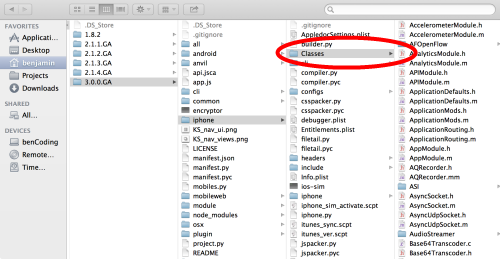
After locating your SDK directory, you will need to go to the Classes folder as shown below.

sdkdirectory

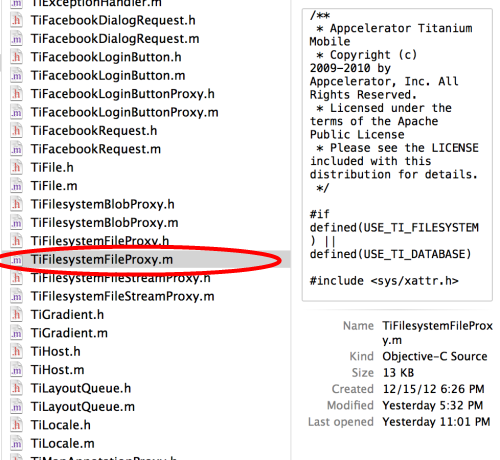
Look for the TiFilesystemFileProxy.m file and open this in your favorite text editor.

TiFileSystemProxy

Scroll down in the file until you see the method –(id)createFile:(id)args right above this method paste in the below.

-(id)isFile:(id)unused
{
	BOOL isDirectory;
	return ([fm fileExistsAtPath:path isDirectory:&isDirectory] && !isDirectory);
}

-(id)isDirectory:(id)unused
{
	BOOL isDirectory;
	return ([fm fileExistsAtPath:path isDirectory:&isDirectory] && isDirectory);
}

view on gist

Once completed, save the file (TiFilesystemFileProxy.m)

Clean your project & done

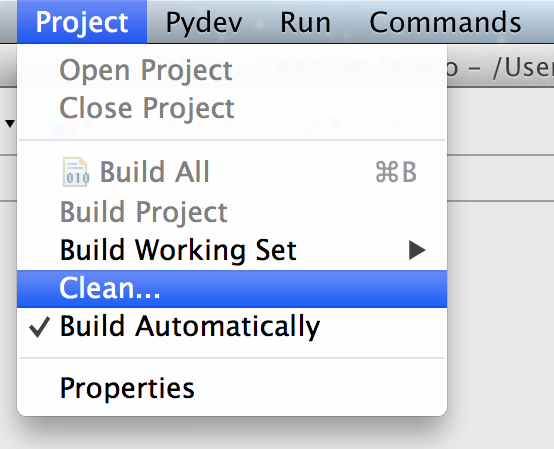
You will need to clean your Titanium Projects before the SDK modifications will be available.  To clean your projects using Titanium Studio go to the Project menu and select Clean… as shown below.

cleanmenu

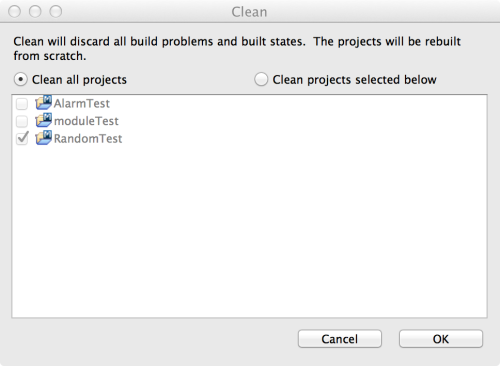
In the Clean Dialog Window, select Clean All Projects.

cleandialog

You are now ready to use these new functions in your Titanium Projects.

How what? How does it work?

After adding these updates to your SDK, the Ti.File object will have the same isFile and isDirectory methods as they do on Android.  Below is a demonstration app.js you can use for testing.


//Test if the resources folder is a directory.
var resourceDir = Titanium.Filesystem.getFile(Titanium.Filesystem.resourcesDirectory);
Ti.API.info('resourceDir ' + resourceDir);
Ti.API.info('resourceDir nativePath ' + resourceDir.nativePath);
Ti.API.info('resourceDir isDirectory ' + resourceDir.isDirectory());
Ti.API.info('resourceDir isFile ' + resourceDir.isFile());

var newDir = Titanium.Filesystem.getFile(Titanium.Filesystem.applicationDataDirectory,'mydir');
if(!newDir.exists()){
  Ti.API.info("Created mydir: " + newDir.createDirectory());
}

var newFile = Titanium.Filesystem.getFile(newDir.nativePath,'newfile.txt');
newFile.write("\nText appended via write()", true);

Ti.API.info('newdir ' + newDir);
Ti.API.info('newdir nativePath ' + newDir.nativePath);
Ti.API.info('newdir isDirectory ' + newDir.isDirectory());
Ti.API.info('newdir isFile ' + newDir.isFile());

Ti.API.info('newFile ' + newFile);
Ti.API.info('newFile nativePath ' + newFile.nativePath);
Ti.API.info('newFile isDirectory ' + newFile.isDirectory());
Ti.API.info('newFile isFile ' + newFile.isFile());

Ti.API.info('Now open a window so we can test on device easier');

// Create a simple window to show our results
(function(){

	var win = Ti.UI.createWindow({
		backgroundColor:'#fff',layout:'vertical'
	});

	win.add(Ti.UI.createLabel({
		top:10, text:'resourceDir isDirectory ' + resourceDir.isDirectory()
	}));

	win.add(Ti.UI.createLabel({
		top:10, text:'resourceDir isFile ' + resourceDir.isFile()
	}));

	win.add(Ti.UI.createLabel({
		top:10, text:'newdir isDirectory ' + newDir.isDirectory()
	}));

	win.add(Ti.UI.createLabel({
		top:10, text:'newdir isFile ' + newDir.isFile()
	}));

	win.add(Ti.UI.createLabel({
		top:10, text:'newFile isDirectory ' + newFile.isDirectory()
	}));

	win.add(Ti.UI.createLabel({
		top:10, text:'newFile isFile ' + newFile.isFile()
	}));

	win.open();

})();

Ti.API.info('End Test');

Titanium Android Module JDT Setup

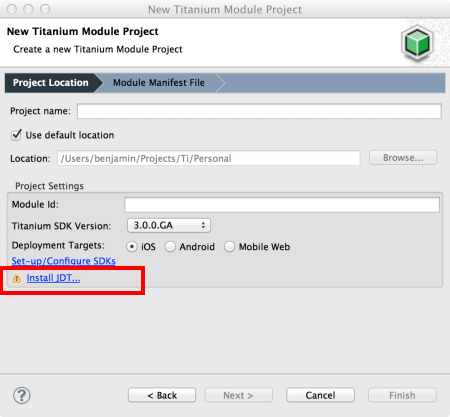
I’ve just started a project that requires the development of a few Titanium Android modules.  After configuring all of my SDK and NDK paths I was surprised to be greeted with the message that I had to install JDT…

JDT

Since Titanium Studio is Eclipse based the question is what version of the JDT is compatible?  After alittle hunting I found the “Installing the Java Development Tools” guide that provided all of the steps needed to add this dependency.


Hopefully this helps someone that is Googling on how to resolve this warning.

Copying or Moving Titanium Folders

Looking for away to Copy or Move a folder in your Titanium app?  Check out Dossier an all JavaScript module that provides a cross-platform API for working with folders.

Where to get it

The Dossier module, example app.js and supporting files are available at https://github.com/benbahrenburg/Dossier

How it works

Dossier is all JavaScript making it simple to both use and modify.  Simply copy the dossier.js CommonJS module into your app and start coding.

Below is a sample app.js showing Dossier in action.

//Create our application namespace
var my = {};
//Import the module
my.dossier = require('dossier');

Ti.API.info('Copy one directory to another');

//Create our source and target directory paths
var sourceDir = Ti.Filesystem.getFile(Ti.Filesystem.resourcesDirectory, 'SampleData');
var targetDir = Ti.Filesystem.getFile(Ti.Filesystem.applicationDataDirectory + '/NewSampleData');

Ti.API.info('Copying ' + sourceDir.nativePath + ' to ' + targetDir.nativePath );
my.dossier.copy(sourceDir.nativePath,targetDir.nativePath);

Ti.API.info('List all the contents of ' + targetDir.nativePath);
var listTargetContents = my.dossier.listContents(targetDir.nativePath);

Ti.API.info('Move ' + sourceDir.nativePath + ' to ' + targetDir.nativePath );
my.dossier.move(sourceDir.nativePath,targetDir.nativePath);

Ti.API.info('List all the contents of ' + targetDir.nativePath);
listTargetContents = my.dossier.listContents(targetDir.nativePath);