Changing a Titanium iOS Module’s GUID

Occasionally you will need to a module’s GUID.  This is commonly done to avoid licensing conflicts with open source modules.

Updating a module’s GUID is a straight forward and simple process.  The below steps demonstrate how to change the GUID in your Titanium iOS custom module.

Before getting started it is important to note that Appcelerator doesn’t support updating your module’s GUIDs so please make a back-up of your original files just in case.

Generate a new GUID

The first step is to generate a new GUID.  I like to use GuidGenerator.com. Using this site we generate a GUID of 2016a336-bc2-494a-b112-98d6edd999de that we will us to update our Xcode module project.

guidgenerator

Updating the Manifest File

When you create a Titanium Module project, a manifest file is automatically created for you.  This file contains your project name, version information, module id, and your module’s GUID.

The manifest file is located in the root of your Xcode project, as shown below.
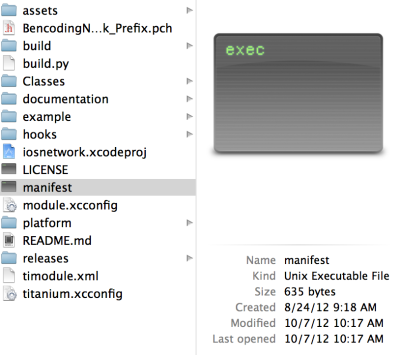
manifest_file

Open this file in your favorite text editor and change the existing GUID to the new one generated by GuidGenerator.com.  In our case the manifest should now look like the below.


manifest_guid_update

Updating your Xcode Project

The next step is to update your module’s moduleId method.  This is located in the <Your Module Name>Module.m file of your project. In this example our module is called BencodingNetwork, so we will want to look in the BencodingNetworkModule.m project file.

finding_class

You will want to open this class file in Xcode and update the moduleGUID property.  You simply update the return value with the same GUID used in updating our manifest file.

xcode_update

Almost done, one last step

Now that you’ve updated your module’s GUID you will need to re-build your module.  To do this open terminal in the root of your module’s folder and run the ./build.py script as shown below.  This will generate a new compile module zip for you to use in your Titanium projects.
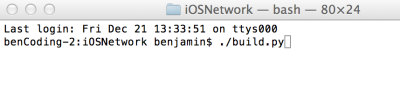
termina

Opening Custom Url Schemas with Titanium

Apple’s iOS implements a custom URL scheme is a mechanism through which third-party apps can communicate with each other.  This allows your app to launch other apps.

Using this powerful iOS feature is simple, just provide the app’s url to the Titanium.Platform.openURL method.

List of Custom Url Schemes Resources

The most challenging part of using Custom Url Schemes is finding available url’s to call.  Several new services have been released to meet this need.  Below is a few of the most comprehensive resources I have found.  Unfortunately many of the examples only show the top level Url without detailed functionality mapping.

Custom Url Examples:

Using the Custom Url Scheme resources discussed above you can quickly integrate with a wide variety of services using the same implementation pattern as shown below.  The below  are a few examples showing how you can use custom urls within your Titanium app.

FaceTime:

//Make a facetime call

var url = "facetime://1234567890";
if (Titanium.Platform.canOpenURL(url)) {
    Titanium.Platform.openURL(url);
}
else {
    alert('Cannot open app');
}

iBooks:

//Open an iBook from the App Store

var url = "itms-books://itunes.apple.com/us/book/the-zombie-survival-guide/id419952002";
if (Titanium.Platform.canOpenURL(url)) {
    Titanium.Platform.openURL(url);
}
else {
    alert('Cannot open app');
}

Facebook:

//Open the facebook app to the friends section

var url = "fb://friends";
if (Titanium.Platform.canOpenURL(url)) {
    Titanium.Platform.openURL(url);
}
else {
    alert('Cannot open app');
}

More Resources

OneTok Android Titanium Module

I am happy to announce the Ti.OneTok module for Android.  This joins the iOS module created a few months ago.

The Module

The Ti.OneTok module provides a wrapper around the OneTok SDK allowing you to call it from your Titanium Project.  The Ti.OneTok module is available for download from the github project.

The Code

The complete code, documentation, and example app.js is available for download on github

AndroidModule, Documentation, and example

iOSModule, Documentation, and example

Ti.OneTok is available under the Apache 2 license so feel free to fork, extended, and contribute.

The Example

function startRecording(){
    var oneTokOutput = [];

    //This method is called on error
    function onError(e){
        Ti.API.info(e);
        alert('Errored while recording');
    };

    //This method is called as OneTok processes your
    //speak results. This will be called several times before finish
    function onResults(e){
        Ti.API.info("results=" + JSON.stringify(e));
        //We add the pending results to be used later.
        oneTokOutput.push(e);
        //You can check the result_type to determine if
        //a valid result has been returned
        if(e.result_type=='valid'){
            Ti.API.info("Valid Results=" + JSON.stringify(e));
        }
    };

    //This method is called when the recording session has finished
    function onFinish(e){
        alert('Recording Completed');
        Ti.API.info(JSON.stringify(oneTokOutput));
    };

    if(!Ti.Network.online){
        alert("I'm sorry a network connection is needed to use this module");
    }else{
        oneTokSession.startRecording({
                onResults:onResults, //Add callback to process results, called many times
                onError:onError, //Add callback to handle error messages
                onFinish:onFinish  //Add callback to handle when recording has finished
        });
    }
};

Titanium MapView ImageOverlays, TileOverlays, GeoJSON and More

I’m happy to announce the latest release of the benCoding.MapView module.

This is a big release that provides support for the following:

In addition to the above features the module’s memory footprint has greatly been reduced.

The module is fully documented with samples demonstrating how to use each feature.  To learn more please visit our module documentation here.

What to see more of the module in action?  The module’s samples has been updated with videos highlighting many of the advanced features of the MapView module.  Please visit the our showcase  to view the demos in action.

A special thanks to Jeff Bonnes (@jeffbonnes) for contributing TileOverlay support.

New Features In Action

Here are a few of the new features in action.


Supporting Different orientationModes in your Universal iOS App

Recently I had a requirement to create a universal app that supported different orientation modes for iPhone and iPad. 

There are two key points to implementing a universal app that support different orientations by device.

  1. Explicitly define your launch orientations in your tiapp.xml for both iPhone and iPad
  2. On Window create explicitly set the orientation mode property.

Setting iPhone and iPad Launch Orientations

By configuring your orientation modes in your tiapp.xml tells the app what orientations are supported when the app is loading and your splash screen is active.  Since Titanium 2.0 you have the ability to set the orientation modes using info.plist format as shown below.

  1. Add the UISupportedInterfaceOrientations node as shown below. This specifies the orientation mode used by the iPhone.
  2. Add the UISupportedInterfaceOrientations~ipad node as shown below. This specifies the orientation mode the iPad will use.

If you do not add the iPad orientation node(UISupportedInterfaceOrientations~ipad) your app will use the UISupportedInterfaceOrientations settings to determine default orientation behavior.

The example below shows setting the launch orientations for the iPhone to Portrait and the iPad to both Portrait and Landscape.

<?xml version="1.0" encoding="UTF-8"?>
<ti:app xmlns:ti="http://ti.appcelerator.org">
    <deployment-targets>
        <target device="mobileweb">false</target>
        <target device="iphone">true</target>
        <target device="ipad">true</target>
        <target device="android">false</target>
        <target device="blackberry">false</target>
    </deployment-targets>
    <ios>
        <plist>
            <dict>
                <key>UISupportedInterfaceOrientations</key>
                <array>
                    <string>UIInterfaceOrientationPortrait</string>
                    <string>UIInterfaceOrientationPortraitUpsideDown</string>
                </array>
                <key>UISupportedInterfaceOrientations~ipad</key>
                <array>
                    <string>UIInterfaceOrientationPortrait</string>
                    <string>UIInterfaceOrientationPortraitUpsideDown</string>
                    <string>UIInterfaceOrientationLandscapeLeft</string>
                    <string>UIInterfaceOrientationLandscapeRight</string>
                </array>
            </dict>
        </plist>
    </ios>
</ti:app>

For more information please reference the iOS Specific Section documentation here.

Creating Windows with Explicit Orientations

It is a best practice to always set the orientations you wish to support on Window creation.

Below is a helper function and sample I use when creating all of my windows.  This can also be helpful for setting a common backgroundColor, or other setting.

1. CommonJS Helper ( file called helper.js)

var _isPhone = (Ti.Platform.osname == "iphone");
exports.makeWindow=function(a){
    a = a || {};
    var win = Ti.UI.createWindow(a);
    if(_isPhone){
            win.orientationModes = [
                Ti.UI.PORTRAIT,
                Ti.UI.UPSIDE_PORTRAIT
            ];  
    }else{
            win.orientationModes = [
                Ti.UI.PORTRAIT,
                Ti.UI.UPSIDE_PORTRAIT,
                Ti.UI.LANDSCAPE_LEFT,
                Ti.UI.LANDSCAPE_RIGHT
            ];  
    }

    return win; 
};

2. Sample Window Creation (app.js)

var helpers = require('helpers');
var winConfig = {
        title:"Foo", backgroundColor:'#fff', tabBarHidden:true, barColor:'#000
};
var win = helpers.makeWindow(winConfig);
var testLabel = Ti.UI.createLabel({
        text:"this is a test, turn the device to see if it worked", 
        color:"#000", top:40, left:25, right:25, height:60,
        textAlign:"center", font:{fontSize:12}
});
win.add(testLabel);
win.open();

For more information about window orientation please see the documentation here.

Setting the Minimum iOS Version for your Titanium Project

With Appcelerator’s release of Titanium SDK 2.1.2 you can now specify the minimum iOS version in your tiapp.xml file.  This is a big step forward in managing all of your cross platform configurations in one file.  For me this has removed the latest need for a custom plist,

Just add the min-ios-ver node to the ios configuration section in your project’s tiapp.xml.  The below example sets a minimum iOS SDK level to 5.0.

<ios>
    <min-ios-ver>5.0</min-ios-ver>
    <plist>
        <dict>
            <key>UIPrerenderedIcon</key>
            <true/>
            <key>UIStatusBarStyle</key>
            <string>UIStatusBarStyleBlackTranslucent</string>
            <key>UISupportedInterfaceOrientations</key>
            <array>
                <string>UIInterfaceOrientationPortrait</string>
                <string>UIInterfaceOrientationPortraitUpsideDown</string>
            </array>
        </dict>
    </plist>
</ios>

This has streamlined the deployment process for me both via Titanium Studio and Transport.py.

OneTok Titanium Module

Looking to include voice recognition in your Titanium app? You can use the OneTok service and the Titanium module to add this feature into your Titanium project in just a couple lines of code.

What is OneTok?

OneTok provides developers with a simple and flexible infrastructure for building voice recognition controls into mobile apps.

To learn more please visit them here OneTok.com and review their documentation here.

The Titanium Module

The Ti.OneTok module provides a wrapper around the OneTok SDK allowing you to call it from your Titanium Project.  The Ti.OneTok module is available for download from the github project.

You can download the compiled iOS module here.  Documentation is available for the iOS module here.

The Code

The complete code, documentation, and example app.js is available for download ongithub here.

Ti.OneTok is available under the Apache 2 license so feel free to fork, extended, and contribute.

An Example

A full demonstration app.js is available in the module’s example folder.

Below shows how to authenticate and tell OneTok which grammar to use.

//Sample demonstrating how to authenticate a Ti.OneTok Session
function authenticateSession(){
    
    function onError(e){
        //We encountered an error, provide the details
        Ti.API.info(e);
        alert('Errored on Authentication');
    };
    function onSuccess(e){
        //Login was successful
        alert('Authenticated Successfully');
    };
    
    if(!Ti.Network.online){
        alert("I'm sorry a network connection is needed to use this module");
    }else{
        oneTokSession.authenticate({
                hostName:"http://sandbox.onetok.com:8080",
                appID : "YOUR_APP_ID_GOES_HERE",
                appToken : "YOUR_APP_TOKEN_GOES_HERE",
                version : "0.1",
                onSuccess:onSuccess, //Called when authentication is successful
                onError:onError //Called on authentication error        
        });     
    }   
};

The below shows how to start recording.

function startRecording(){
    var oneTokOutput = [];
    
    //This method is called on error
    function onError(e){
        Ti.API.info(e);
        alert('Errored while recording');
    };
    
    //This method is called as OneTok processes your
    //speak results. This will be called several times before finish
    function onResults(e){
        Ti.API.info("results=" + JSON.stringify(e));
        //We add the pending results to be used later.
        oneTokOutput.push(e);
        //You can check the result_type to determine if 
        //a valid result has been returned
        if(e.result_type=='valid'){
            Ti.API.info("Valid Results=" + JSON.stringify(e));  
        }
    };
    
    //This method is called when the recording session has finished
    function onFinish(e){
        alert('Recording Completed');
        Ti.API.info(JSON.stringify(oneTokOutput));
    };
    
    if(!Ti.Network.online){
        alert("I'm sorry a network connection is needed to use this module");
    }else{      
        oneTokSession.startRecording({
                onResults:onResults, //Add callback to process results, called many times 
                onError:onError, //Add callback to handle error messages
                onFinish:onFinish  //Add callback to handle when recording has finished
        });
    }   
};

FAQ

  • Is there an Android version? – Coming soon
  • How do I start using OneTok? – OneTok requires an API key, please register at OneTok.com and follow their get started tutorial.

Using Titanium iOS Specific Configurations

Starting with the release of Titanium Mobile 2.1 iOS specific configurations have been moved under an ios node in the tiapp.xml similar to Android.  This is quickly becoming one of my favorite features.

Using the new iOS Section

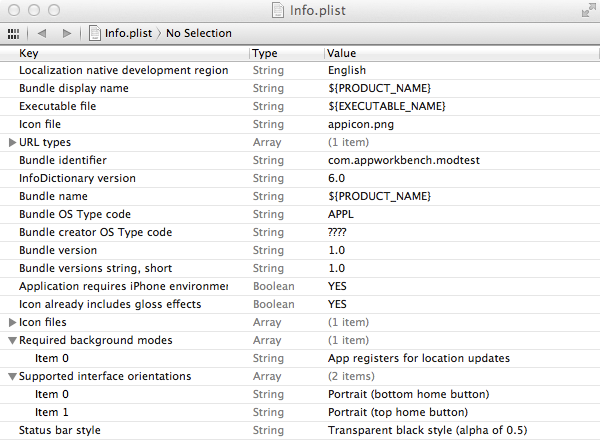
The new iOS configuration section allows you to include native plist settings into your tiapp.xml file. At compile time, Titanium will use these settings when generating your project’s Info.plist. This reduces the need to use a custom Info.plist in your project, and makes it much easier to compare your Titanium settings with those in your xcode project.

For example here is a tiapp.xml with a few modifications.

<?xml version="1.0" encoding="UTF-8"?>
<ti:app xmlns:ti="http://ti.appcelerator.org">
    <deployment-targets>
        <target device="mobileweb">false</target>
        <target device="iphone">true</target>
        <target device="ipad">false</target>
        <target device="android">true</target>
        <target device="blackberry">false</target>
    </deployment-targets>
    <sdk-version>2.2.0.v20120710</sdk-version>
    <id>com.appworkbench.modtest</id>
    <name>ModeTest</name>
    <version>1.0</version>
    <publisher>benCoding</publisher>
    <url>http://test.com</url>
    <description>not specified</description>
    <copyright>2012 by benCoding</copyright>
    <icon>appicon.png</icon>
    <analytics>false</analytics>
    <guid>b8962c32-58ec-458f-8c93-bf6b7dbad5d2</guid>
<ios>
<plist>
<dict>
<key>UIPrerenderedIcon</key><true/>
<key>UIStatusBarStyle</key><string>UIStatusBarStyleBlackTranslucent</string>	
<key>UISupportedInterfaceOrientations</key>
<array>
   	<string>UIInterfaceOrientationPortrait</string>
   	<string>UIInterfaceOrientationPortraitUpsideDown</string>
</array>
<key>UIBackgroundModes</key>
<array>
   	<string>location</string>
 	</array>
</dict>	
</plist>
</ios>    
    <android xmlns:android="http://schemas.android.com/apk/res/android"/>
    <modules>
    </modules>
</ti:app>

You can easily see how each of the components map to the generated Info.plist.

plist Sample

Adding Other iOS Configuration Elements

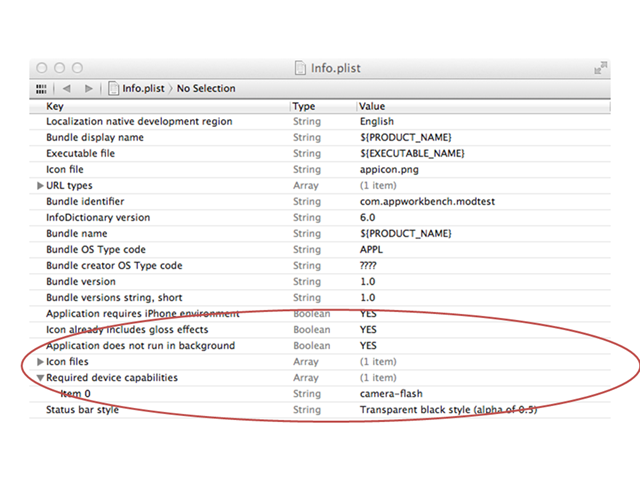
You can also add other iOS configuration elements quickly.  In the example below we show adding an entry for UIApplicationExitsOnSuspend to close the app when placed into the background and requiring the device has a flash by using UIRequiredDeviceCapabilities.

<ios>
	<plist>
		<dict>
			<key>UIPrerenderedIcon</key><true/>
			<key>UIStatusBarStyle</key><string>UIStatusBarStyleBlackTranslucent</string>	
			<key>UIApplicationExitsOnSuspend</key><true/>
			<key>UIRequiredDeviceCapabilities</key>
				<array>
				   <string>camera-flash</string>
				</array>	 	
		</dict>	
	</plist>
</ios>

Titanium generates the correct Info.plist entries as shown below.

Adding More Entries

Adding Custom Fonts

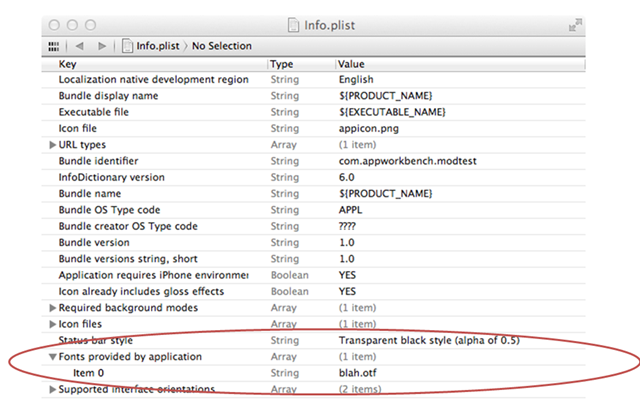
The new iOS section removes the need to use a predefined plist for Custom Font support.  You now can define your fonts directly in your tiapp.xml and Titanium will handle the rest.

For example, we’ve added the below reference to our custom font “blah.otf”.

<ios>
	<plist>
		<dict>
			<key>UIPrerenderedIcon</key><true/>
			<key>UIStatusBarStyle</key><string>UIStatusBarStyleBlackTranslucent</string>	
			<key>UISupportedInterfaceOrientations</key>
				<array>
				   	<string>UIInterfaceOrientationPortrait</string>
				   	<string>UIInterfaceOrientationPortraitUpsideDown</string>
				</array>
			<key>UIAppFonts</key>
				<array>
				   	<string>blah.otf</string>
				</array>	 	
		</dict>	
	</plist>
</ios>

Titanium generates the correct Info.plist entries as shown below.

Custom Fonts Sample

You can read more about using Custom Fonts in your project here https://wiki.appcelerator.org/display/guides/Custom+Fonts

Helpful References

For more information please reference the iOS Specific Section documentation here.

Not all plist values are supported so you will want to pay special attention to those listed here

Using Circle Layouts in your Titanium MapView

In my last post, I outlined how you can add Polygon support to your Titanium MapView.  Continuing with this topic, I have added Circle Overlay support (MKCircle) to the Titanium MapView module.

To avoid any namespace collisions I forked the native Titanium MapView implementation and create the benCoding.Map module.

To show how this works, I’ve create a demonstration showing all of the worlds nuclear power plants with a circle showing a 10 and 50 mile radius.

Link: http://www.youtube.com/watch?v=jwnByWz1eJo

Please visit github for the compiled module, documentation, and sample apps. The project can be found at https://github.com/benbahrenburg/benCoding.Map

The Polygon and Circle example apps are included in the modules example folder or on github here.

Hopefully these examples will be useful for anyone working with GIS functions in Titanium.

Using Polygons in your Ti.Map.View

For a recent project, I needed to add Polygon support to Titanium’s MapView.  To avoid any namespace collisions I forked the native Titanium MapView implementation and create the benCoding.Map module.

To show how this works, I’ve put together a sample showing Polygon’s for all of the US States, and a country level Polygon for the United Kingdom.

Link: http://www.youtube.com/watch?v=1rudu6S9-rc

For the compiled module and associated code please visible https://github.com/benbahrenburg/benCoding.Map

The demo project shown in the video is included in the module’s example folder.

Hopefully these examples will be useful for anyone working with GIS functions in Titanium.