Generating GUIDs in JavaScript

My last few projects required the use of GUIDs in a variety of ways.  While searching for an all JavaScript approach, I stumbled across a great stackoverflow question “How to create a GUID / UUID in Javascript?”Broofa provided an elegant solution to this problem which I’ve placed into a CommonJS module to make it easy to use in Titanium.

CommonJS Module:

exports.generate = function(){
	var guid = 'xxxxxxxx-xxxx-4xxx-yxxx-xxxxxxxxxxxx'.replace(/[xy]/g, function(c) {
	    var r = Math.random()*16|0, v = c == 'x' ? r : (r&0x3|0x8);
	     return v.toString(16);
	});		
	return guid;
};

View as gist

Generating a GUID in Titanium:

Ti.API.info("Require the CommonJS module");
var guid = require("guidtools");

Ti.API.info("Requesting a new guid");
Ti.API.info("GUID value = " + guid.generate());

View as gist

The above generates the below in your console window.

GUIDOutput

Titanium AppStore Tools

Looking for away to make sure your uses have upgraded to the latest version of your app?  Using the AppStoreHelpers object within the benCoding.iOS.Tools module you can easily query the Apple AppStore for the latest version.  You are then a simple version compare away from having the information needed to prompt your user to upgrade or version specific service calls.

Show me an example

var tools = require('bencoding.ios.tools');
var appStoreHelpers = tools.createAppStoreHelpers();
function queryResults(e){
    
    Ti.API.info(JSON.stringify(e));
    
    Ti.API.info("success = " + e.success);
    Ti.API.info("appStoreVersion = " + e.appStoreVersion);
    Ti.API.info("appID = " + e.appID);
    Ti.API.info("code = " + e.code);
    Ti.API.info("installedVersion = " + e.installedVersion);
    var hasUpdate = (parseFloat(e.appStoreVersion) > parseFloat(e.installedVersion));
            
    if(hasUpdate){
        var alert = Ti.UI.createAlertDialog({
            title:'Update now', 
            message:'There is a new version available. Do you want to download now?',
            buttonNames : ['OK','Cancel']
        });
        
        alert.addEventListener('click', function(y){
            if(y.index == 0){
                appStoreHelpers.launch(queryITunesID);
            }
        });
        alert.show();
    }
};

//Let's pretend we are angry birds
var queryITunesID = '409807569';
//Call the check version method
appStoreHelpers.versionCheck(queryITunesID,queryResults);

How does it work?

You can look-up the version information for an iTunes Id by making a service call to http://itunes.apple.com/lookup. For example, you can get the latest information about Angry Birds by using http://itunes.apple.com/lookup?id=409807569

How do I get my iTunes Id?

To find your iTunes Id open iTunes and go to your app. Right click on the App’s iTunes coverart and select the Copy Link option. For example, if you do this on Angry Birds you will receive the following url https://itunes.apple.com/us/app/angry-birds-free/id409807569?mt=8.

The section after the id and before the question mark is your iTunes Id. Using our Angry Bird’s example their iTunes Id would be 409807569. This is the value you will want to use when launching or performing a version check.

Where can I get it?

The benCoding.iOS.Tools module is available on Github at https://github.com/benbahrenburg/benCoding.iOS.Tools

Determine if Intent Receiver Exists on Android using Titanium

One of the challenges in working with Ti.Android.Intent‘s is knowing if the device has an app installed that will be able to handle the request.  The recommended approach until now was to wrap your startActivity statement within a try/catch statement.

With the new Android.Tools module you can now check if a Ti.Android.Intent has a receiver before submitting. This allows you to write more defensive code blocks like the one below:

//Add our tools module
var tools = require('bencoding.android.tools');
var platformTools = tools.createPlatform();

//Check we have external storage access
if(!Ti.Filesystem.isExternalStoragePresent()){
	alert("Access to external storage required");
	return;
}

//Create a Ti.File to our sample file
var pdfSource = Ti.Filesystem.getFile(Ti.Filesystem.resourcesDirectory + 'your_file.pdf');
//Create a temp file so the intent can read the file
var timeStampName = new Date().getTime();
var tempFile = Ti.Filesystem.getFile(Ti.Filesystem.tempDirectory,timeStampName +'.pdf');
if(tempFile.exists()){
	tempFile.deleteFile();
}
tempFile.write(pdfSource.read());
pdfSource = null;

//Create our PDF intent
var intent = Ti.Android.createIntent({
	action: Ti.Android.ACTION_VIEW,
	type: "application/pdf",
	data: session.tempFile.nativePath
});

//Check that the device can open the intent
if(platformTools.intentAvailable(intent)){
	//Since the device can open the intent run startActivity
	try {
		Ti.Android.currentActivity.startActivity(intent);
	} catch(e) {
		Ti.API.debug(e);
		alert('Something went wrong');
	}
}else{
	//No PDF reader to we need to alert the user to go get one.
	alert("Please go to the Google Play Store and download a PDF reader");			
}

Android.Tools project

Github Repo:

 https://github.com/benbahrenburg/benCoding.Android.Tools

Documentation:

https://github.com/benbahrenburg/benCoding.Android.Tools/tree/master/documentation

Example:

https://github.com/benbahrenburg/benCoding.Android.Tools/tree/master/example

iOS Simulator Switching Devices

With Apple’s latest products, including the iPhone 5 we now have to worry about more form factors then ever. As the method for switching the device type in Titanium Studio is still pretty clumsy I went in search of an earlier way.

The Appcelerator forums had a great post by Rob Gabbard with an AppleScript helper to do just what I was looking for. With a small update to add support for the Retina iPad and iPhone 5 I can now switch devices must easier.

I wanted to share a link to this script for anyone that might have missed the QA post. Unfortunately this doesn’t address the need for the app to be launched again when the device is changed.

set selectedDevices to choose from list {"iPhone", "iPhone (Retina 3.5-inch)", "iPhone (Retina 4-inch)", "iPad", "iPad (Retina)"} with prompt "Choose device type:" default items {"iPhone"} without multiple selections allowed
if selectedDevices is not false then
    set selectedDevice to item 1 of selectedDevices as string
    set thePListFolderPath to path to preferences folder from user domain as string
    set thePListPath to thePListFolderPath & "com.apple.iphonesimulator.plist"
    
    tell application "System Events"
        tell property list file thePListPath
            tell contents
                set value of property list item "SimulateDevice" to selectedDevice
            end tell
        end tell
    end tell
end if

View the the gist of the script.

Titanium iOS adding isFile and isDirectory to the SDK

As I was building Dossier.js I ran into a small parity issue between iOS and Android.  On Android Titanium provides you two helper functions.  On a Ti.File object you can call isFile() to get a boolean indicator if your currently working with a file.  Likewise you can call isDirectory() to determine if you are working with a directory.  These are extremely helpful utilities when performing any kind of file system acrobatics.

How do we get this to work on iOS?  Easy, update the SDK and send a pull request.  Just shows how powerful open source can be.

Want to add this to your SDK now?  It couldn’t be easier, just follow the below three simple steps.

Updating your SDK

Find your SDK Directory

The first step is to find your Titanium SDK directory.  This is usually installed under a directory path similar to the one shown below.

path

Adding your methods

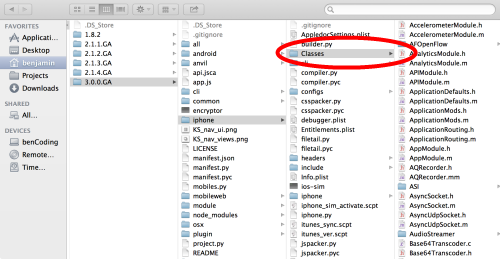
After locating your SDK directory, you will need to go to the Classes folder as shown below.

sdkdirectory

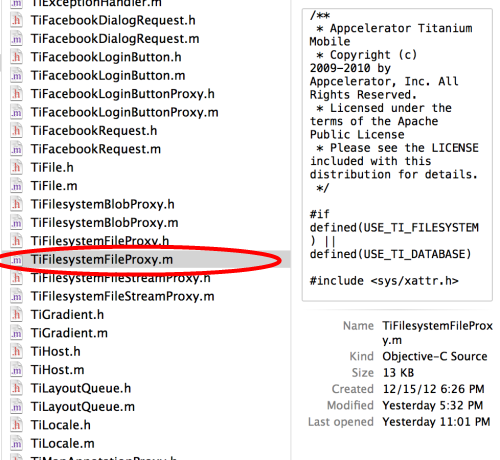
Look for the TiFilesystemFileProxy.m file and open this in your favorite text editor.

TiFileSystemProxy

Scroll down in the file until you see the method –(id)createFile:(id)args right above this method paste in the below.

-(id)isFile:(id)unused
{
	BOOL isDirectory;
	return ([fm fileExistsAtPath:path isDirectory:&isDirectory] && !isDirectory);
}

-(id)isDirectory:(id)unused
{
	BOOL isDirectory;
	return ([fm fileExistsAtPath:path isDirectory:&isDirectory] && isDirectory);
}

view on gist

Once completed, save the file (TiFilesystemFileProxy.m)

Clean your project & done

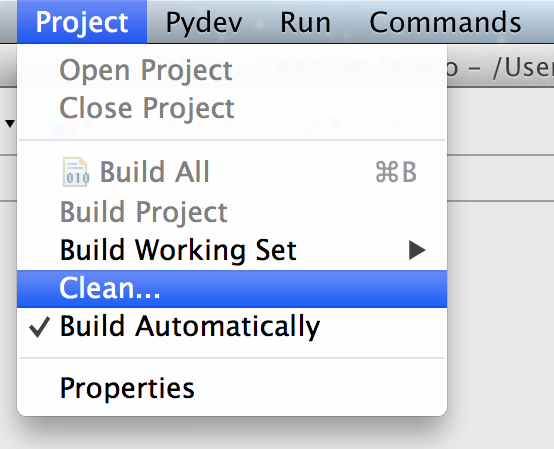
You will need to clean your Titanium Projects before the SDK modifications will be available.  To clean your projects using Titanium Studio go to the Project menu and select Clean… as shown below.

cleanmenu

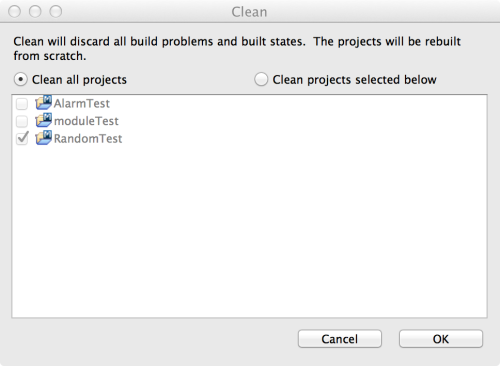
In the Clean Dialog Window, select Clean All Projects.

cleandialog

You are now ready to use these new functions in your Titanium Projects.

How what? How does it work?

After adding these updates to your SDK, the Ti.File object will have the same isFile and isDirectory methods as they do on Android.  Below is a demonstration app.js you can use for testing.


//Test if the resources folder is a directory.
var resourceDir = Titanium.Filesystem.getFile(Titanium.Filesystem.resourcesDirectory);
Ti.API.info('resourceDir ' + resourceDir);
Ti.API.info('resourceDir nativePath ' + resourceDir.nativePath);
Ti.API.info('resourceDir isDirectory ' + resourceDir.isDirectory());
Ti.API.info('resourceDir isFile ' + resourceDir.isFile());

var newDir = Titanium.Filesystem.getFile(Titanium.Filesystem.applicationDataDirectory,'mydir');
if(!newDir.exists()){
  Ti.API.info("Created mydir: " + newDir.createDirectory());
}

var newFile = Titanium.Filesystem.getFile(newDir.nativePath,'newfile.txt');
newFile.write("\nText appended via write()", true);

Ti.API.info('newdir ' + newDir);
Ti.API.info('newdir nativePath ' + newDir.nativePath);
Ti.API.info('newdir isDirectory ' + newDir.isDirectory());
Ti.API.info('newdir isFile ' + newDir.isFile());

Ti.API.info('newFile ' + newFile);
Ti.API.info('newFile nativePath ' + newFile.nativePath);
Ti.API.info('newFile isDirectory ' + newFile.isDirectory());
Ti.API.info('newFile isFile ' + newFile.isFile());

Ti.API.info('Now open a window so we can test on device easier');

// Create a simple window to show our results
(function(){

	var win = Ti.UI.createWindow({
		backgroundColor:'#fff',layout:'vertical'
	});

	win.add(Ti.UI.createLabel({
		top:10, text:'resourceDir isDirectory ' + resourceDir.isDirectory()
	}));

	win.add(Ti.UI.createLabel({
		top:10, text:'resourceDir isFile ' + resourceDir.isFile()
	}));

	win.add(Ti.UI.createLabel({
		top:10, text:'newdir isDirectory ' + newDir.isDirectory()
	}));

	win.add(Ti.UI.createLabel({
		top:10, text:'newdir isFile ' + newDir.isFile()
	}));

	win.add(Ti.UI.createLabel({
		top:10, text:'newFile isDirectory ' + newFile.isDirectory()
	}));

	win.add(Ti.UI.createLabel({
		top:10, text:'newFile isFile ' + newFile.isFile()
	}));

	win.open();

})();

Ti.API.info('End Test');

Titanium Android Module JDT Setup

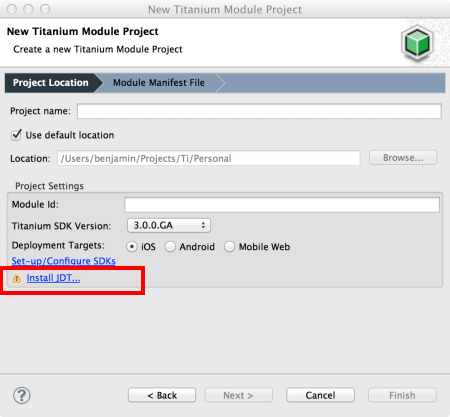
I’ve just started a project that requires the development of a few Titanium Android modules.  After configuring all of my SDK and NDK paths I was surprised to be greeted with the message that I had to install JDT…

JDT

Since Titanium Studio is Eclipse based the question is what version of the JDT is compatible?  After alittle hunting I found the “Installing the Java Development Tools” guide that provided all of the steps needed to add this dependency.


Hopefully this helps someone that is Googling on how to resolve this warning.

Copying or Moving Titanium Folders

Looking for away to Copy or Move a folder in your Titanium app?  Check out Dossier an all JavaScript module that provides a cross-platform API for working with folders.

Where to get it

The Dossier module, example app.js and supporting files are available at https://github.com/benbahrenburg/Dossier

How it works

Dossier is all JavaScript making it simple to both use and modify.  Simply copy the dossier.js CommonJS module into your app and start coding.

Below is a sample app.js showing Dossier in action.

//Create our application namespace
var my = {};
//Import the module
my.dossier = require('dossier');

Ti.API.info('Copy one directory to another');

//Create our source and target directory paths
var sourceDir = Ti.Filesystem.getFile(Ti.Filesystem.resourcesDirectory, 'SampleData');
var targetDir = Ti.Filesystem.getFile(Ti.Filesystem.applicationDataDirectory + '/NewSampleData');

Ti.API.info('Copying ' + sourceDir.nativePath + ' to ' + targetDir.nativePath );
my.dossier.copy(sourceDir.nativePath,targetDir.nativePath);

Ti.API.info('List all the contents of ' + targetDir.nativePath);
var listTargetContents = my.dossier.listContents(targetDir.nativePath);

Ti.API.info('Move ' + sourceDir.nativePath + ' to ' + targetDir.nativePath );
my.dossier.move(sourceDir.nativePath,targetDir.nativePath);

Ti.API.info('List all the contents of ' + targetDir.nativePath);
listTargetContents = my.dossier.listContents(targetDir.nativePath);

Titanium iOS KeyChain support with Securely

I’m happy to announce the the availability of the Securely Titanium module.  The goal of Securely is to provide a security toolkit for Titanium developers to write more secure apps.

KeyChain Properties API

The first release of Securely (iOS only) provides a Properties API which provides access to the iOS KeyChain.  Designed for ease of use the Properties module should be familiar to anyone using Titanium as it mimics the popular Ti.App.Properties API.

var securely = require('bencoding.securely');
Ti.API.info("module is => " + securely);

//You can provide optional identifier and accessGroup 
//If none are provided we will use your bundle id as the identifier
var properties = securely.createProperties({
     identifier:"Foo",
     accessGroup:"Bar"
});

Since the Securely Properties module mimics Ti.App.Properties you simply call setString when you would like to save a value.  Instead of being written to Properties it is instead persisted to the device’s KeyChain.

properties.setString('String','I am a String Value ');

Similarly you use the getString method just like you would for properties, but instead you are retrieving values from the KeyChain.  We even support default values for API compatibility.

Titanium.API.info('String: ' + properties.getString('whatever',"Fred"));

All of your other Ti.App.Properties you rely upon also have a compatible equivalent in Securely.  To see the full list please read our documentation here.

Get the module

The module is available at benahrenburg/Securely on github.

Need an example?

The module’s example folder contains a sample app.js demonstrating all of the available methods.  You can view the sample in on github here.

Learn more

To learn more please visit the Securely github repo and read the documentation.

What’s next?

I am currently working on adding Encryption and File Handling features to Securely.  An Android version is also in the planning stages.

Using the Luhn Algorithm in Titanium

The Luhn algorithm or “mod 10” algorithm, is a checksum used to validate a variety of identification numbers including those used by most credit card vendors.

It was created by IBM scientist Hans Peter Luhn and described in U.S. Patent No. 2,950,048, filed on January 6, 1954, and granted on August 23, 1960.  This is a pretty interesting algorithm as algorithms go and I would recommend checking it out on Wikipedia.

The following demonstrates how you can a CommonJS module implementation of this algorithm in your Titanium app.

Before we can get started, we need to generate a few fake credit card numbers for testing. For this demonstration I used the site “Get Credit Card Numbers”.  This site provided us with the fake number we use in all of our examples.

Credit Card Helper CommonJS Module

First we create our module using the below code.  This module has one function called verifyCardWithLuhn that has one parameter for you to pass in the credit card number you wish to validate.  This function will return true if the provided credit card number is in the correct format, or false if the format is invalid.


exports.verifyCardWithLuhn=function(cardNumber){
  //Remove spaces
	cardNumber = cardNumber.replace(/[^\d]/g, "");
	//Grab our length for use later
	var cardLength = cardNumber.length;
	//If no length return invalid
	if (cardLength === 0){
		return false;
	}
	//Get last digit
    var lastDigit = parseInt(cardNumber.substring((cardLength-1),cardLength),10);
    //Build string with all credit card digits minus the last one
    var cardNumberMinusLastDigit = cardNumber.substring(0,(cardLength-1));
    //Build up our variables needed for our calculation
    var sum = 0, luhnLength = cardNumberMinusLastDigit.length, luhnKey = [0,1,2,3,4,-4,-3,-2,-1,0];

    //Step 1 of our hash add the numbers together
    for (i=0; i<luhnLength; i++ ) {
      sum += parseInt(cardNumberMinusLastDigit.substring(i,i+1),10);
    }
    //Step 2 of our has, we now add in our key values
    for (i=luhnLength-1; i>=0; i-=2 ) {
  	  sum += luhnKey[parseInt(cardNumberMinusLastDigit.substring(i,i+1),10)]
    }

    //Adjust our sum as neeed
   	var mod10 = sum % 10;
   	mod10 = 10 - mod10;
   	if (mod10===10) {
    	mod10=0;
   	}

    //Our hash should now mast the last digit of our number
  	return (mod10===lastDigit);
};

See the gist here.

Calling our Module

Calling our Credit Card Helper module is easy. We simply use the require method to add the CommonJS module into our project.


var my = {tools:{}};
//Import our module into our project
my.tools.cardHelper = require('credit_card_helper');
//Our test credit card number that we got from http://www.getcreditcardnumbers.com/
var testCreditCardNumber ="49713268648235453";
//Call our verify method to check if our credit card number is in a correct format
var ccCheck = my.tools.cardHelper.verifyCardWithLuhn(testCreditCardNumber);
//alert the result back to the user
alert(ccCheck);

See the gist here.

Things to reminder

Please remember this algorithm can only validate if the format is correct.  You will still need to use a 3rd party service to determine if the number itself is active and valid.

Review : Augmented Reality using Appcelerator Titanium Starter

book_reviewOver the holidays I had a chance to read Trevor’s new book “Augmented Reality using Appcelerator Titanium Starter“.   Although I was a technical reviewer this was my first chance to read the completed book cover to cover.

This book is a must have for any Titanium developer looking to explore
Augmented Reality.  If you are just getting started with Titanium this book has a ton of recipes to help get you started.

My favorite section was the discussion on how to handle the views which draw the different location elements.  This is a fresh approach on handling performance issues often related to rapidly moving views.  Just as interesting was the discussions related to the different location algorithms.  Even experienced Titanium developers will find new useful snippets to take away from the author’s code.

If you are new to Titanium development you might want to check out Appcelerator’s Getting Started Guides first, as the author focuses his time on discussing the complexities of the augmentedTi app instead of setup topics.

To learn more about this book please visit the below:

The augmentedTi open source app can be found at the link below: